
Oops! Something went wrong while submitting the form.


.svg)
A profit and loss (P&L) statement is the fastest way to see if your business is actually making money. It pulls together your sales, cost of goods sold, and operating expenses into a single narrative: revenue in, money out, profit left over. Whether you follow the simple layouts from business.gov.au or the more detailed templates from QuickBooks and Smartsheet, a consistent P&L lets you track trends by month or quarter, test pricing strategies, and decide when to hire, launch, or cut a campaign.
In Google Sheets or Excel, you can start from a template, then customize categories for your reality—ad spend, software, freelancers, subscriptions. But collecting exports from payment processors, CRMs, and ad platforms every month is tedious and error‑prone.
That’s where delegating to an AI computer agent becomes powerful. Instead of you chasing CSVs at midnight, the agent can open your bank portal, download statements, paste numbers into your Google Sheets or Excel P&L, and highlight anomalies—turning a dreaded close ritual into an automated, always‑on financial cockpit.
A profit and loss (P&L) statement summarizes your revenue, costs, and expenses over a period to show whether you’re making money. Below are three practical paths: traditional manual builds, no‑code automation, and finally AI agents that can run the whole workflow for you.
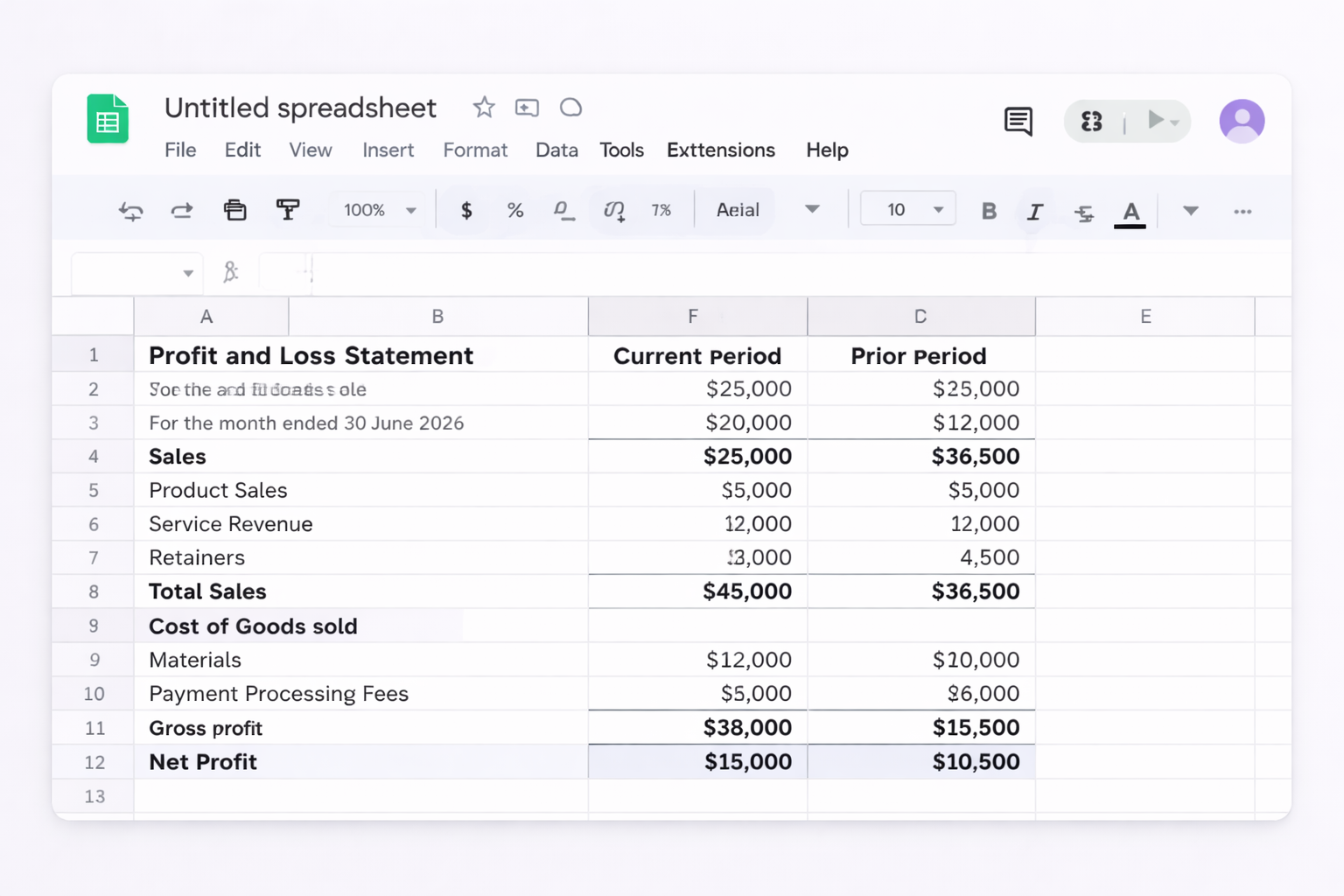
Profit and Loss Statement. For the month ended 30 June 2026).Sales. Product sales, Service revenue, Retainers). =SUM(Detail!B2:B100).Cost of Goods Sold and specific lines (e.g. Materials, Payment processing fees, Contractor fulfillment). =SUM(B13:B18).Gross Profit formula in B: =B_total_sales - B_total_COGS. Use cell references, e.g. =B11-B19.Advertising & Marketing, Rent, Software, Payroll, Utilities, Insurance. =SUM(Bx:By).Net Profit row formula: =Gross_Profit_Cell - Total_Expenses_Cell.
Pros: Free, highly customizable, easy to share.
Cons: Manual data entry, prone to errors, time‑consuming every period.
Sales_Detail, COGS_Detail, and Expenses_Detail. =SUM(Sales_Detail!D:D) to roll up amounts to the summary P&L.Bank vs P&L check and compare =Bank_Total - P&L_Total.
Pros: Professional templates, powerful formula engine, great for offline teams.
Cons: Version control issues via email, still requires manual updates.
=SUM(Jan:Mar!B10)‑style 3D formulas in Excel or =SUM(Jan!B10,Feb!B10,Mar!B10) in Sheets.
Pros: Good trend visibility, helps with planning.
Cons: More tabs and formulas to maintain.
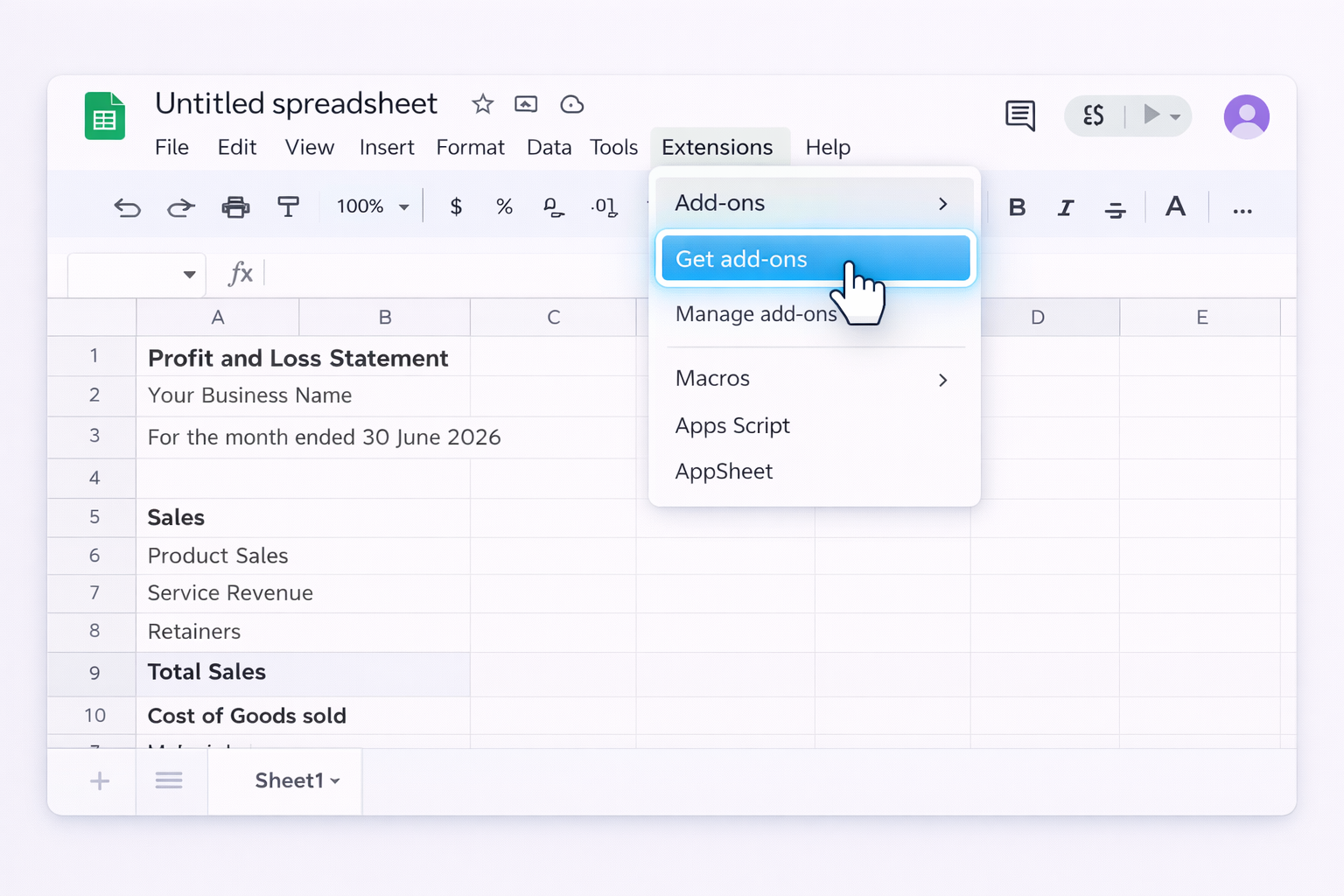
Raw_Data tab with all imported rows. Category column and use rules (e.g. IF(REGEXMATCH(Description,"META"),"Advertising","Other")). SUMIF / SUMIFS to roll up to your P&L summary.
Pros: Reduces manual copy‑paste, still flexible, low cost.
Cons: Setup requires some spreadsheet skill; breakage when column structures change.
Category column with rules. Fact_Transactions table.Fact_Transactions. Rows = Category, Values = Sum of Amount, Filters = Month.
Pros: Strong for bigger datasets, refreshable with one click.
Cons: Windows‑centric, steeper learning curve, still requires you to run refreshes.
Now imagine you never open half these tabs. Instead, an AI agent logs in, downloads statements, updates your P&L in Google Sheets or Excel, and emails you a summary.
What it does:
A Simular AI computer agent can behave like a meticulous finance assistant across desktop, browser, and cloud:
Pros:
Cons:
For agencies or multi‑brand businesses, Simular can:
Pros:
Cons:
By moving from manual Sheets/Excel builds to no‑code automation and then to AI agents, you keep the same familiar P&L templates—just progressively replace human keystrokes with reliable, inspectable automation.
.png)
%20(1).svg)