

Oops! Something went wrong while submitting the form.

.svg)
Most marketers meet their Facebook ads “budget moment” the same way every month: too many tabs open, numbers copied from Ads Manager into a half-broken spreadsheet, and a nagging doubt that the ROAS you’re reporting is even right.
A dedicated Facebook ad cost calculator turns that chaos into a clear story. By standardizing inputs like spend, CPC, CPM, CTR, and CPA, you can quickly see which campaigns are profitable, which are burning cash, and what needs to change before the next billing cycle. Building this inside Google Sheets keeps everything flexible: you can customize formulas, add benchmarks, and adapt it to ecommerce, SaaS, or lead gen without waiting on a dev team.
Now layer in an AI computer agent. Instead of you hunting for numbers, the agent logs in, pulls fresh data, drops it into Sheets, and runs the calculations on autopilot.
When you delegate the Facebook ad cost calculator to an AI agent, you stop being a human API between Facebook Ads Manager and your spreadsheet. The agent fetches data, updates Google Sheets, and recalculates ROAS on a schedule, so you see performance early enough to act. That means fewer late-night exports, fewer copy‑paste errors, and more time for strategy, creative, and client conversations that actually move revenue.
If you manage Facebook ads for your own business or a roster of clients, you already know the pattern: Ads Manager dashboards, CSV exports, half-finished spreadsheets, and a gut feeling that your ROAS could be better if you just had an extra hour to analyze.
A Facebook ad cost calculator — especially one that lives in Google Sheets — is how you turn raw metrics into real decisions. And when you pair it with an AI computer agent like Simular, you can run that whole process on autopilot.
Below are the top ways to calculate Facebook ad costs, from fully manual to fully automated.
This is the starting point: you build the calculator once, then (for now) keep it updated by hand.
CPC = =C2/E2 (Spend ÷ Clicks)CPM = =(C2/D2)*1000 (Spend ÷ Impressions × 1000)CTR = =E2/D2 (Clicks ÷ Impressions)CPA = =C2/F2 (Spend ÷ Conversions)ROAS = =G2/C2 (Revenue ÷ Spend)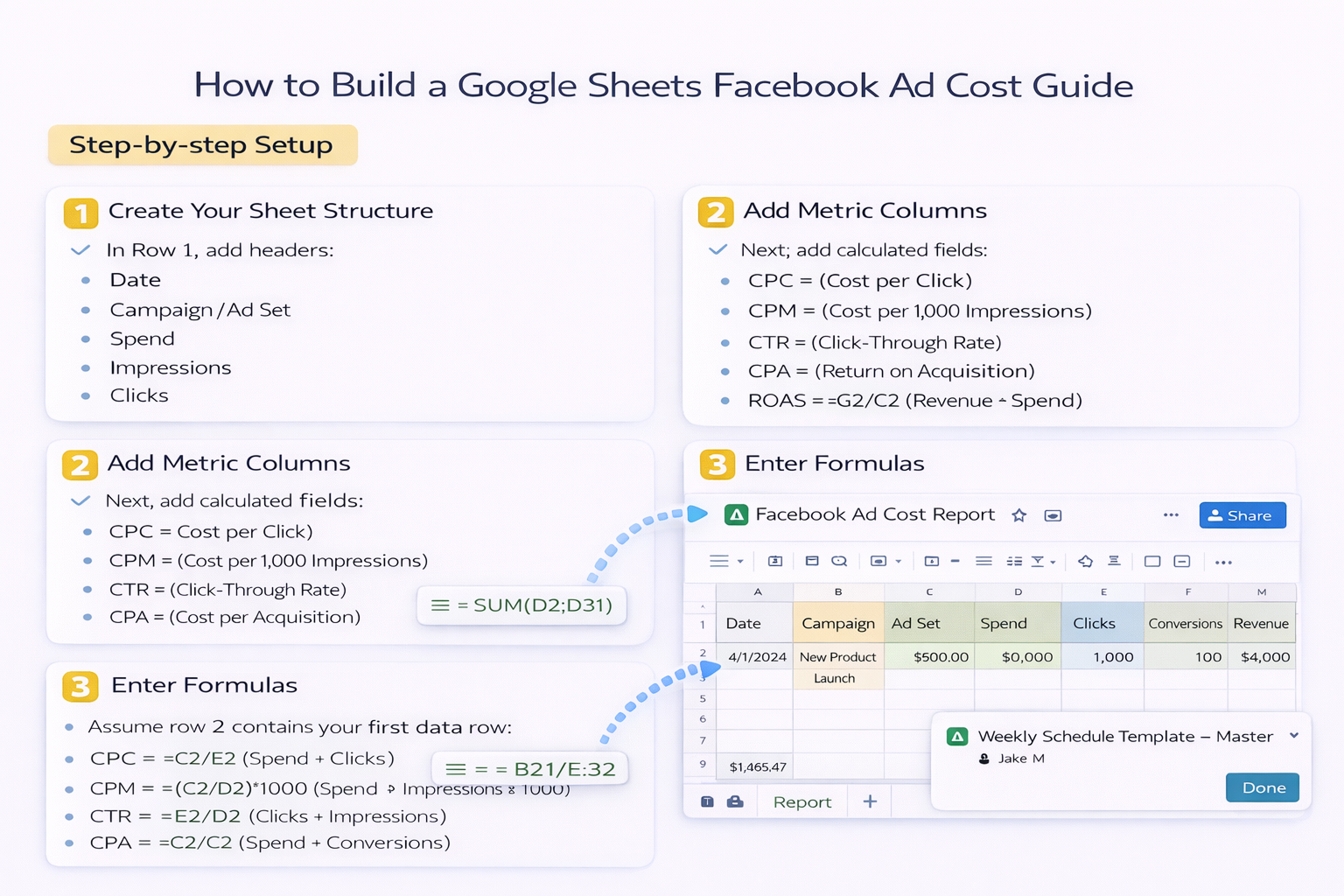
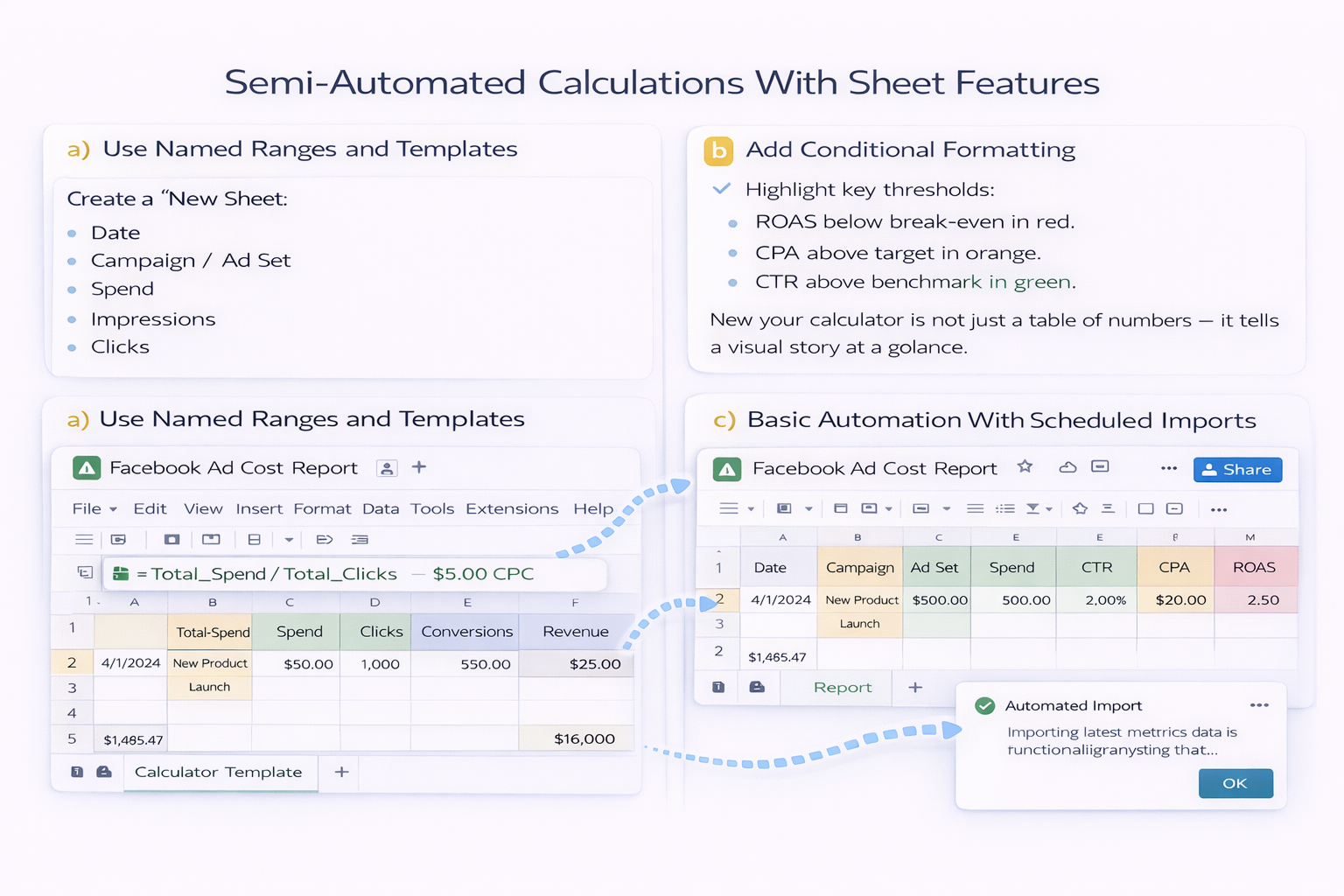
Before bringing in AI agents, squeeze more value from Google Sheets itself.
Create a “Calculator Template” tab with all formulas and a clear input section. Use named ranges (like Total_Spend, Total_Clicks) so your formulas read like sentences, making it easier for teammates and clients to understand.
Highlight key thresholds:
Now your calculator is not just a table of numbers — it tells a visual story at a glance.
If you’re comfortable with connectors or scripts, you can connect Google Sheets to Facebook via a third-party connector or an Apps Script calling the Facebook Marketing API. That automatically updates raw metrics, while your existing formulas do the math.
This is where you stop being a spreadsheet operator and start acting like a strategist. Instead of logging in, exporting, and pasting data yourself, you teach an AI computer agent to do it for you.
Using Simular Pro, you can spin up an agent that:
All of this runs like a very fast, very careful assistant who never gets bored of repetitive clicks.
The endgame is simple: you spend less time wrangling numbers and more time deciding what to do about them — creative tests, new audiences, better offers. Let the agent handle the math and the mechanics; you handle the strategy.


