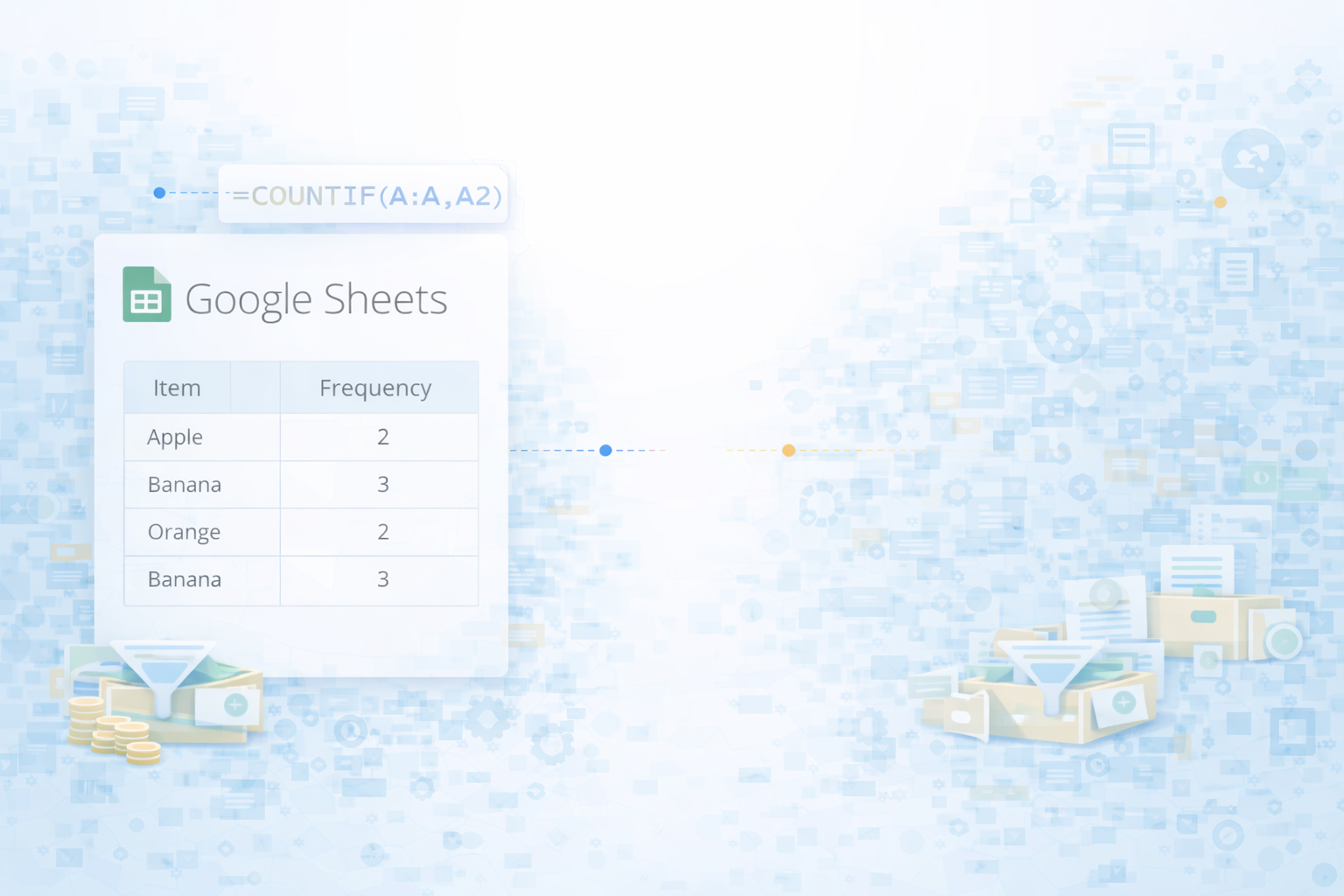
If you run a sales team, agency, or SaaS business, you live in spreadsheets. Leads, campaigns, survey responses, support tickets – they all land in Google Sheets as long, unreadable lists. A frequency table is the moment that chaos becomes signal: which channels drive most leads, which offers convert, which complaints keep repeating. Instead of scrolling through hundreds of rows, you see a compact story – categories and counts that spotlight what to double down on and what to fix.
Now imagine that story updating itself. An AI computer agent watches Google Sheets the way an operations analyst would: importing fresh data, building frequency tables with COUNTIF, FREQUENCY, or pivot tables, formatting them, and flagging anomalies. Delegating this work means no more late-night spreadsheet cleanup before a client call. The agent does the repetitive clicks; you spend your time asking better questions and acting on the patterns it surfaces.
Every business has that sheet: hundreds or thousands of rows of leads, orders, survey responses, or ticket logs. Hidden inside is a simple question: "What happens most often?" A frequency table in Google Sheets answers that instantly.
Below are three levels of sophistication for building frequency tables:
These approaches are perfect when you’re still designing your analysis or working on small datasets.
Use this when you want to know how often each category appears (e.g., lead source, campaign, rating).
Step-by-step:
Rating.B2.=UNIQUE(A2:A)C2, enter:=COUNTIF($A$2:$A, B2)Category in B1, Frequency in C1.Pros:
Cons:
Official reference: COUNTIF and UNIQUE are documented in Google’s function list: Google Docs Editors Help.
Use this when your data is numeric (e.g., deal size, age, response time) and you want to group values into ranges or "bins".
Step-by-step:
A2:A101).C2:C6 (note: one more row than your bins).=FREQUENCY(A2:A101, B2:B5)<=10, 11–20, 21–30, 31–40, >40 aligned with the output in column C.Pros:
Cons:
Official FREQUENCY docs: FREQUENCY – Google Docs Editors Help.
Pivot tables automatically count how often each value appears, without writing formulas.
Step-by-step:
Insert → Pivot table.Rating or Lead Source).COUNTA.Pros:
Cons:
Official pivot table guide: Create and use pivot tables.
Once you know how to build frequency tables, the next question is: how do I stop doing this manually every week? That’s where no-code tools come in.
Use tools like Zapier, Make, or native integrations (e.g., from your CRM) to pipe new leads, orders, or survey results directly into a "raw data" tab. Your frequency table (built with a pivot table or formulas) then always reflects the latest data.
Workflow outline:
Raw_Data sheet in Google Sheets.A2:A) so it auto-updates.
Use no-code schedulers to copy frequency table results into a "Weekly Report" sheet each Monday morning, timestamped, ready for client or stakeholder review.
Pros of no-code:
Cons:
At some point, your spreadsheet work stops being about a single table and starts being about dozens of repetitive, cross-app workflows. This is where a Simular AI computer agent shines: it behaves like a power user who never gets tired.
What the Simular agent does:
Why this matters for business owners and agencies:
You define the outcome ("Give me a frequency table of lead source by week"), and the Simular agent performs every click, drag, and formula edit reliably, run after run.
Pros:
Cons:
Learn more about Simular Pro’s capabilities: Simular Pro.
For marketers and sales leaders, the frequency table is just step one. A Simular AI agent can:
Here, the agent automates the entire analytics loop, not just the table-building step.
Pros:
Cons:
By combining Google Sheets’ native power (FREQUENCY, pivot tables) with a Simular AI computer agent, you move from "I know how to build a frequency table" to "I never have to build one manually again."
For most business users, the fastest way to build a basic frequency table in Google Sheets is with the UNIQUE and COUNTIF functions.
1) Put your raw data in a single column, for example column A with a header like Lead Source or Rating.
2) In an empty column (say B2), create the list of unique values: `=UNIQUE(A2:A)`. This generates all distinct categories.
3) In the next column (C2), count how often each category appears: `=COUNTIF($A$2:$A, B2)`. The dollar signs lock the range while B2 changes per row.
4) Drag the formula in C2 down alongside your list of unique values. You now have Category (column B) and Frequency (column C).
5) Add headers (Category, Frequency), sort by Frequency descending under Data → Sort range, and optionally add a chart via Insert → Chart.
This approach is easy to audit and ideal for first-time frequency analysis.
Use FREQUENCY when you have numeric data (like order value, response time, or age) and want to group it into ranges.
1) Place your numeric values in one column, e.g. A2:A501.
2) Decide your bins, such as 0, 50, 100, 200, and put them in B2:B5. These are the upper bounds of each class.
3) Select a vertical range next to your bins that’s one cell longer than the bins, e.g. C2:C6.
4) Type the formula: `=FREQUENCY(A2:A501, B2:B5)` and press Enter. Sheets returns counts for each bin and one extra cell for values above your highest bin.
5) Label C2:C6 with friendly ranges, like `<=50`, `51–100`, `101–200`, `>200`.
6) Optionally convert counts to percentages: in D2, use `=C2/SUM($C$2:$C$6)` and format as percent.
Google’s official FREQUENCY documentation is at: https://support.google.com/docs/answer/3094286.
Pivot tables are the cleanest way to build frequency tables for categorical data without touching formulas.
1) Click anywhere inside your data range in Google Sheets.
2) Go to Insert → Pivot table. Confirm the range and choose New sheet, then click Create.
3) In the Pivot table editor sidebar, under Rows, click Add and select the field you want to analyze (e.g. Campaign, Lead Source, Rating). You’ll see unique values appear as rows.
4) Under Values, click Add and select that same field again. By default Sheets uses COUNTA, which counts how many times each value appears.
5) To see the most frequent categories on top, click the dropdown on the row field and sort by the count column, Z→A.
6) Optionally, add another Values field (a copy of the count divided by the grand total) to show percentages.
Google’s help article on pivot tables is here: https://support.google.com/docs/answer/1272900.
To automate weekly updates, combine dynamic formulas or pivot tables with automated data ingestion and scheduling.
1) Ensure your frequency table references open-ended ranges (like A2:A instead of A2:A500) so new rows are automatically included.
2) Use integrations (native CRM → Sheets connectors, Zapier, Make, etc.) to append new records to your raw data tab whenever leads, orders, or responses come in.
3) If you’re using pivot tables, click the refresh icon or set up a simple Apps Script trigger to refresh them on a schedule.
4) For full hands-off operation, use a Simular AI computer agent to open your Google Sheet at a set cadence, import any new files (CSV exports, email attachments), rebuild or refresh the frequency table, and save outputs to a reporting tab.
5) Add notification steps (email or Slack) so stakeholders get updated charts without you touching the sheet.
An AI agent like Simular turns one-off spreadsheet tricks into reusable workflows that run across clients, campaigns, and teams.
Instead of you manually opening Google Sheets, pasting new data, rebuilding frequency tables, and exporting charts, you give the agent a playbook: which Sheets to open, what ranges contain raw data, how to construct or refresh the frequency table (COUNTIF, FREQUENCY, or pivot tables), how to format it, and where to store the results.
Simular’s AI computer agent can:
- Handle logins, file downloads, and browser navigation like a human.
- Execute thousands of steps reliably, with transparent logs you can inspect.
- Run on a schedule or in response to webhooks from your CRM or marketing stack.
The result: every Monday morning, all your client reporting sheets already contain up-to-date frequency tables and charts, and your team spends time on insights and strategy instead of repetitive spreadsheet labor.