Oops! Something went wrong while submitting the form.
Scheduling a call from Slack normally means opening Calendar, creating the event, copying the link, and coming back to explain what you did. Sai does all of it from one instruction: the event lands on your calendar, and the link lands in the channel or DM you name.


The recording is a real session. The sheet on the right is what it produced.
Sai opens each profile, pulls the signal, and writes the row, live, in a real browser.
Eight columns, sorted by score, with a source link behind every claim.
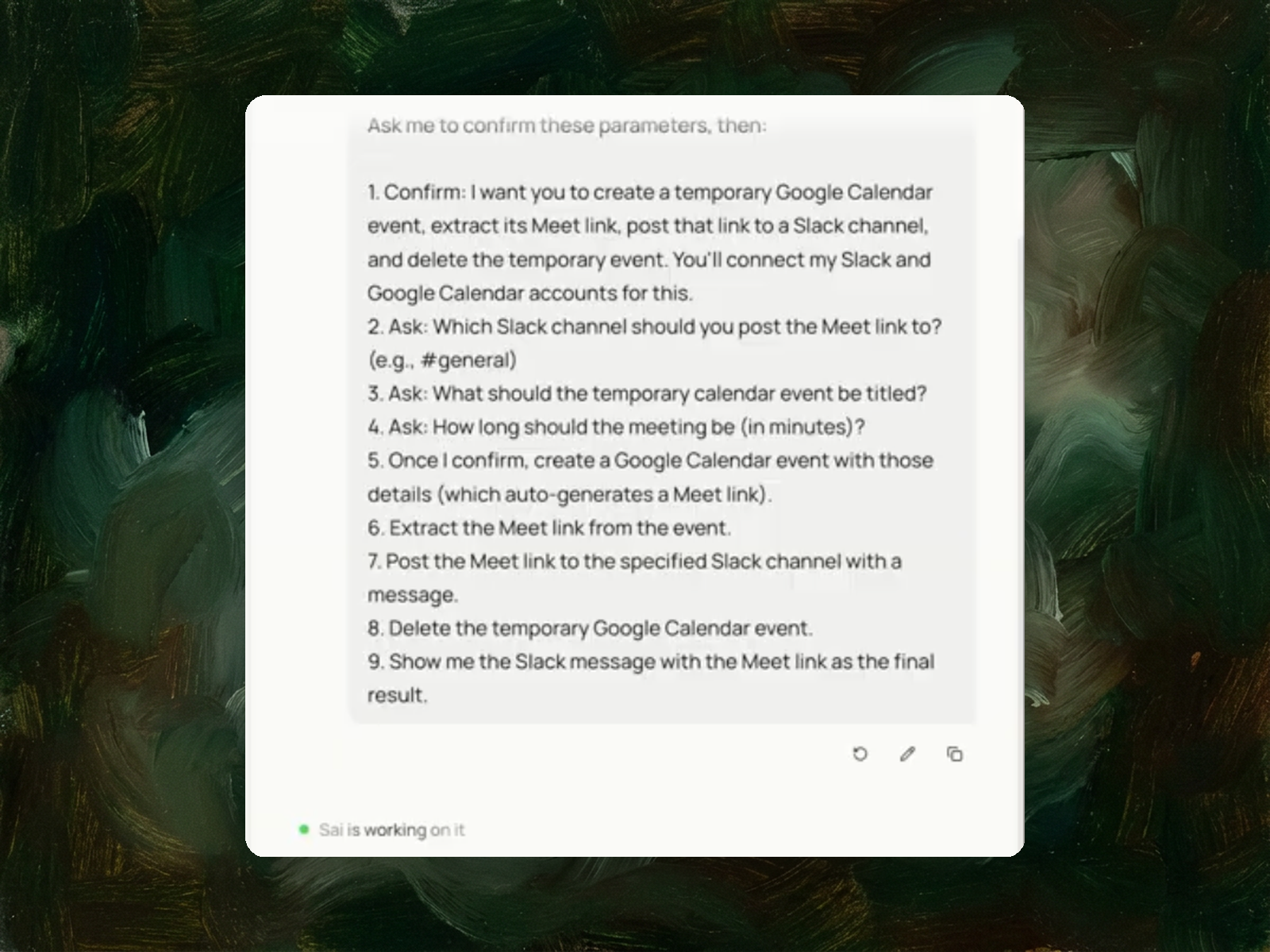
Google Calendar and Slack connected. Sai asks for the title, time, length, attendees and destination before it creates anything.
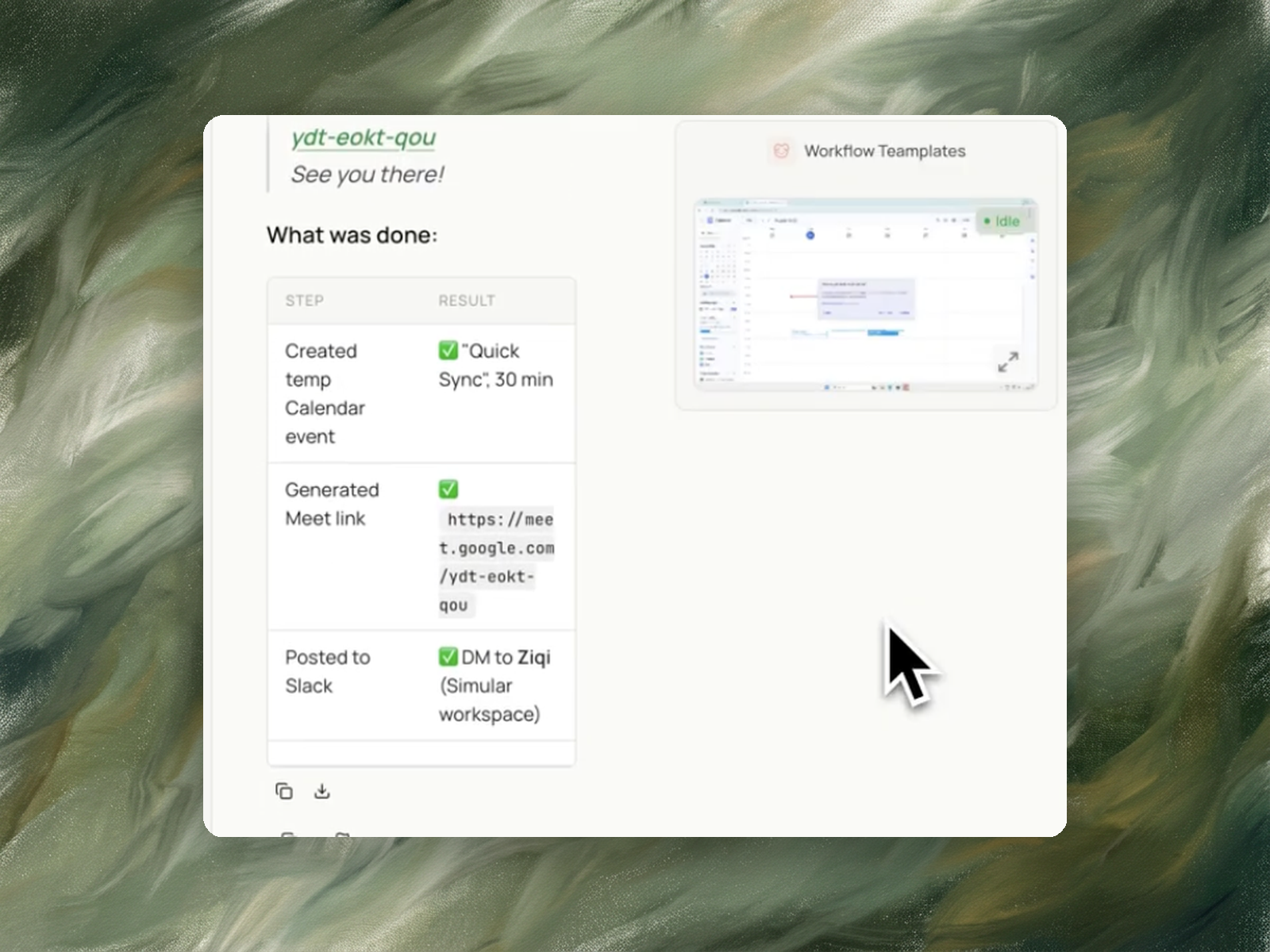
A real calendar event with a Meet link attached, invitations sent to anyone you named, and a written message in the Slack channel or DM you chose — plus a summary with links to both.
One run covers the whole sequence — checking your calendar, creating the event, generating the link, inviting attendees, and posting to Slack — with each step confirmed in the summary.
Run it before a standing sync to create that week's event and drop the link in the channel automatically.
More app-switching than the task deserves.
The conversation is in Slack. Someone says it'd be faster to talk. So you leave, and here's what happens next: open Google Calendar, find the right day, create an event, type a title, set the time, set the duration, click "Add Google Meet video conferencing," add the people who should be there, save, reopen the event to find the link, copy it, switch back to Slack, paste it, and write a line explaining what it is and when.
Thirteen steps, and none of them are difficult. You've done it hundreds of times.
The cost isn't the steps. It's that you left the conversation to do it, and by the time you're back the thread has moved on and you have to reconstruct what you just did in the calendar for everyone else's benefit.
Because the scheduling decision was already made in Slack — only the execution happens somewhere else.
By the time you open the calendar, everything is settled. You know who, when, and how long. There's no thinking left. What's left is data entry across two applications that don't talk to each other, and a copy-paste to carry the result from one to the other.
Meanwhile the discussion continues without you. You come back to eleven new messages and a link that needs context, because a bare meet.google.com URL in a channel tells nobody what it's for or when to show up.
The work is trivial. The interruption isn't.
The whole sequence from one instruction, without leaving the conversation.
You say what the meeting is, when it starts, how long it runs, who should be invited, and where the link should go. Sai checks whether you're already booked at that time, creates the event, lets Google generate the Meet link, sends invitations to anyone you named, and posts the link to the channel or DM with a written message.
Then it reports back: the event with its time, the Meet link, a link to the calendar entry, who was invited, and where the message went.
Everything ends up where it belongs. The meeting is on your calendar like any other meeting. The link is in Slack where the conversation is. Neither of those is a copy of the other.
Yes — it's a normal calendar event, not a temporary artifact.
That means it behaves like one. It occupies the slot, so colleagues checking your availability see you're busy. Google sends reminders before it starts. Invited attendees get an invitation they can accept or decline, and it appears on their calendar too. The Meet link stays attached to the event, so anyone can find it from the calendar without scrolling back through Slack.
That last point is worth dwelling on. A link shared only in a channel is gone once the channel is busy — nobody is scrolling back forty messages at 2pm to find a URL from this morning. When the link is on the event, the event is the reminder and the link is right there in it.
So the Slack message isn't the record. It's the notification. The record is the calendar.
A channel or a direct message, whichever you name.
Both work the same way. For a call with one person, a DM is less noise — the example run posted a DM. For a standup, an incident, or anything where the whole team should see it, the channel is the point.
The message is written rather than a bare URL. A link with no context makes people ask what it's for; one line saying what the meeting is and when solves that.
It checks before it creates anything.
If something already sits in that slot, it tells you and waits rather than quietly stacking a second meeting on top. You decide whether to move it, keep both, or pick another time.
This is worth calling out because it's the obvious failure mode of scheduling by instruction. When you book manually you see the conflict on screen — the whole calendar is in front of you. Booking through a conversation removes that visual check, so the check has to be explicit instead.
Google Calendar's appointment scheduling feature solves a different problem: you publish a booking page, other people browse your availability, and they pick a slot. Calendly works the same way. It's for when someone else chooses the time — client calls, office hours, candidate interviews.
Here, the time is already agreed. It was agreed in the Slack thread thirty seconds ago. There's no availability to browse and nothing to negotiate, because the negotiation already happened in the conversation.
If you want people to book time with you, Google's own documentation on appointment schedules is the right place to start. If a time still needs to be found between several people, our AI meeting scheduler workflows handles that coordination.
Yes, and this is where it stops being a shortcut and starts being actual scheduling.
Give it email addresses and the invitations go out with the event. Attendees get the standard Google invitation, the meeting appears on their calendar, they get reminded, and they can RSVP.
Which raises a distinction worth being clear about: the Slack message is not an invitation. If you post a link to a channel without inviting anyone, nobody's calendar changes — you've told them about a meeting, but their day doesn't know about it.
For a call in ten minutes with people already in the thread, Slack alone is the right amount. For anything later today or tomorrow, invite them properly. The task supports both because both are legitimate; just pick deliberately rather than by accident.
When the decision to meet happened in Slack, which is most of the time.
A thread gets complicated and someone suggests a call. A standup needs a room. An incident needs everyone in one place now. A recurring sync needs this week's link posted where the team will see it.
The pattern is always the same: the conversation produced a scheduling decision, and that decision has to be executed in two other tools. This collapses those two tools back into the conversation.
It's a small task, which makes it a useful building block.
The shape here — read from one service, create in another, deliver the result to a third — is what most useful automation looks like. Once the event exists and the link is posted, the follow-on work is usually notes, follow-ups and the next round of scheduling.
If you're pulling together a morning routine across Slack, Calendar and Gmail, our daily communication briefing covers that ground and reads the same two accounts this one writes to.