
Hoppla! Beim Absenden des Formulars ist etwas schief gelaufen.


.svg)
Every team has that one spreadsheet story. Two versions of the same file, both named final, different numbers, and a nervous walk into the weekly revenue meeting. Matching data across worksheets in Excel or Google Sheets looks simple until you add thousands of rows, duplicates, late edits and human fatigue.
Native tools help. Excel offers Spreadsheet Compare and the Inquire add‑in to highlight changed values, formulas and formats in side‑by‑side grids. Google Sheets gives you lookup functions, filters and conditional formatting. Used well, they surface mismatches in pricing, contacts, claims or inventory before they turn into lost deals or angry customers.
But the real leverage comes when you delegate this whole reconciliation loop to an AI computer agent. Instead of you clicking Home > Compare Files in Excel, picking folders, entering passwords and interpreting colored cells, the agent drives the desktop, runs Spreadsheet Compare or formulas, logs every change and publishes a clean, verified report to your source‑of‑truth sheet.
When an AI agent owns the matching process, you do more than save time. You create a repeatable control: every new export is checked the same way, on the same schedule, with the same rules. The agent can compare hidden sheets, scan for manually entered totals, flag broken formulas and route exceptions to the right owner. You stay focused on strategy while the agent quietly patrols your Google Sheets and Excel workbooks for drift.
Delegating sheet matching also scales effortlessly. Whether you are reconciling two marketing lead lists or a year of monthly finance workbooks, the AI agent does not get tired or sloppy. It just keeps opening files, running comparisons and updating a single, trustworthy view of the truth.
If you run a sales, marketing or operations team, you already know the pain: two spreadsheets that should match, but do not. A lead list from last week versus the CRM export today. An invoice register versus bank payouts. Matching the data across worksheets in Google Sheets and Excel is where hours quietly disappear.
Below is a practical playbook: first the classic manual methods, then no‑code automation, and finally how an AI agent can own this entire workflow at scale.
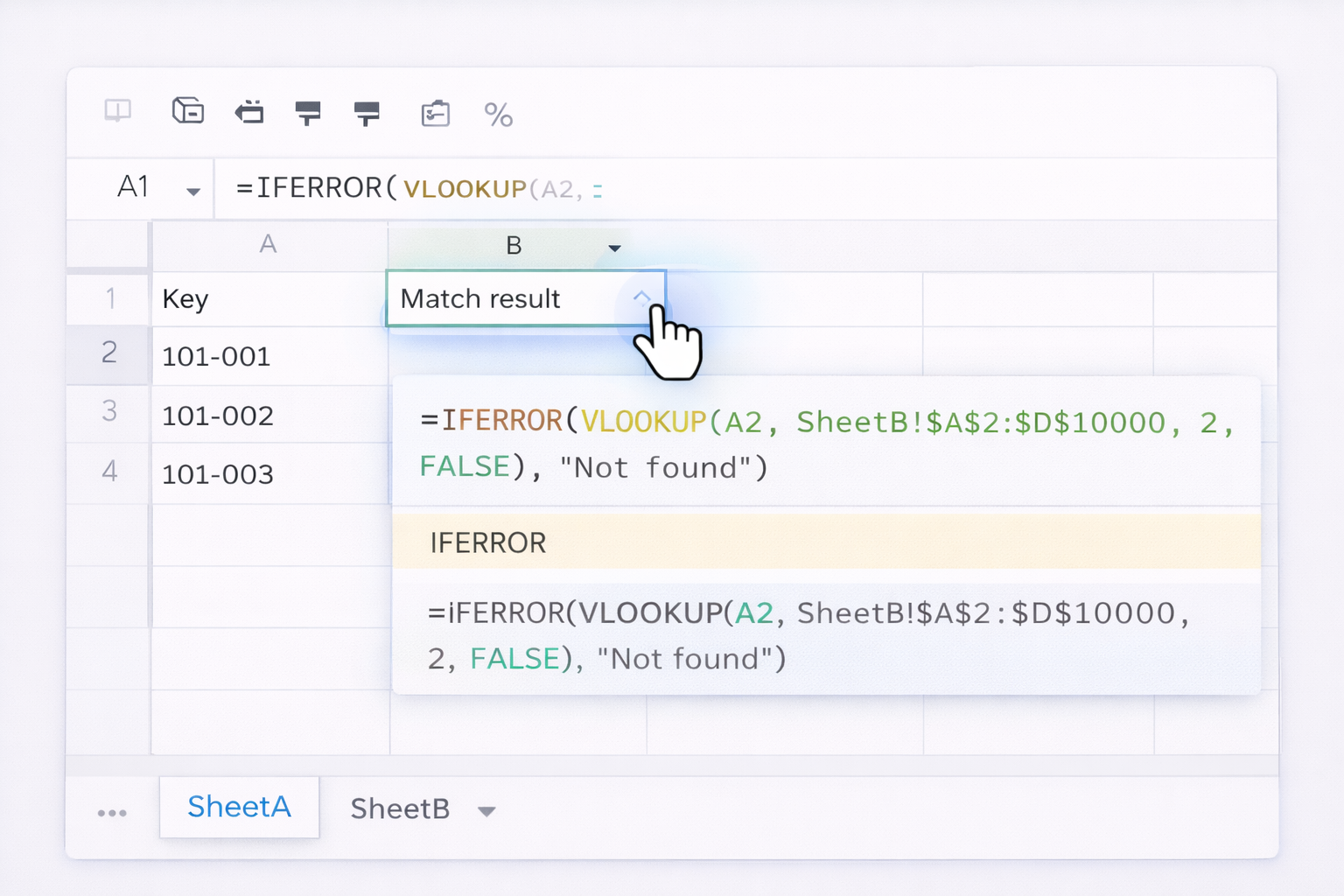
The most common case is: both sheets share a unique key (email, ID, invoice number).
In Google Sheets with VLOOKUP
IMPORTRANGE if B is in another file.=IFERROR(VLOOKUP(A2, SheetB!$A$2:$D$10000, 2, FALSE), "Not found")#N/A or custom text like Not found marks a missing match.Docs: https://support.google.com/docs/answer/3093318
In Excel with XLOOKUP (modern)
=IFERROR(XLOOKUP(A2, SheetB!$A:$A, SheetB!$B:$B), "Not found")Docs: https://support.microsoft.com/en-us/office/xlookup-function-78a5dcd4-2a7b-43d4-9020-17b20284d5d8
INDEX + MATCH is powerful when your lookup column is not the leftmost.
Google Sheets and Excel (same idea)
=IFERROR(INDEX(SheetB!$D:$D, MATCH(A2, SheetB!$A:$A, 0)), "Not found")Docs Sheets: https://support.google.com/docs/answer/3098242 and https://support.google.com/docs/answer/3093378
Docs Excel: https://support.microsoft.com/en-us/office/index-function-a5dcf0dd-996d-40a4-a822-b56b061328bd and https://support.microsoft.com/en-us/office/match-function-e8dffd45-c762-47d6-bf89-533f4a37673a
Sometimes you want to know whether entire rows match across sheets (for example, all customer fields except notes).
Exact row compare in Excel
=AND(Sheet1!B2:E2 = Sheet2!B27:E27)=AND(Sheet1!B2:E2 = INDEX(Sheet2!B:E, MATCH(Sheet1!A2, Sheet2!A:A, 0), 0))Partial row compare
Use AND on specific columns only, such as name, phone, email, address:=AND(Sheet1!B2=Sheet2!B27, Sheet1!C2=Sheet2!C27, Sheet1!D2=Sheet2!D27, Sheet1!E2=Sheet2!E27)
In Google Sheets
=A2 <> INDIRECT("SheetB!" & ADDRESS(ROW(), COLUMN()))Docs: https://support.google.com/docs/answer/78413
In Excel
=A2 <> INDIRECT("Sheet2!" & ADDRESS(ROW(), COLUMN()))
For mission‑critical Excel models, Spreadsheet Compare gives you a professional diff view.
This is excellent for auditing quarterly finance models or complex pricing sheets.
Manual steps still rely on you opening files and pressing buttons. No‑code tools can at least standardize when and how comparisons happen.
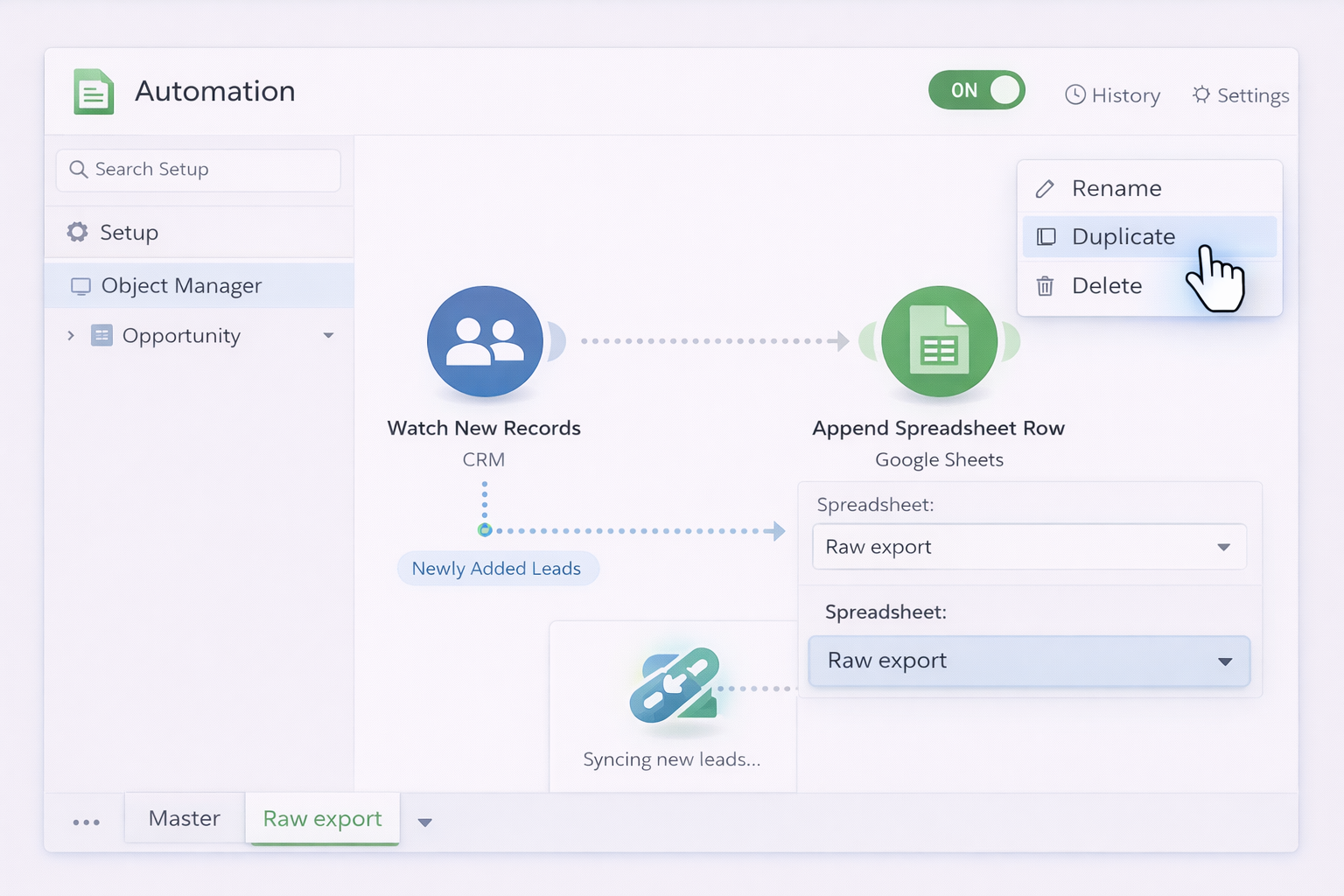
Imagine a marketer who exports leads from a CRM daily and wants to know which contacts are new versus yesterday.
VLOOKUP, XLOOKUP (if available) or INDEX MATCH against Raw export to mark new records or changes.You are not writing code; you are assembling blocks. The heavy lifting still happens inside Sheets formulas.
For businesses on Microsoft 365, Power Automate can orchestrate matching workflows:
XLOOKUP or INDEX MATCH formulas that compare the new data against a reference sheet.No code, just configuration. But you still design and maintain the formulas and mappings.
Once your matching logic works, the most expensive part is still human time: opening files, clicking buttons, fixing small issues, and repeating the process across dozens of workbooks.
This is exactly where a Simular AI agent shines. Simular Pro is a computer‑use agent that can act like a power analyst across your desktop, browser and cloud tools.
Workflow:
Pros:
Cons:
Many agencies live in Google Sheets while finance lives in Excel. A Simular agent can bridge both worlds.
Workflow:
VLOOKUP or INDEX MATCH to pull in values from the Excel data (using IMPORTDATA or by pasting the export into a helper tab).
Pros:
Cons:
For enterprises or busy agencies, the real power is running this daily across dozens of clients or business units.
Workflow:
Pros:
Cons:
When you combine the precision of spreadsheet formulas with an AI computer agent that can click, type and orchestrate across apps, matching data from two worksheets stops being a chore and becomes a dependable background service for your business.