Hoppla! Beim Absenden des Formulars ist etwas schief gelaufen.
How to add chart alt text in Google Sheets and Excel
Learn to add impactful chart alt text in Google Sheets and Excel, then plug in an AI computer agent to automate accessible, inclusive reporting at scale.
Advanced computer use agent
Production-grade reliability
Transparent Execution
G Sheets and Excel alt text
Every chart you publish tells a story. But without alt text, that story is invisible to anyone relying on a screen reader. In Excel and Google Sheets, a bar chart might reveal a winning campaign or a quarter that outperformed forecasts, yet all a visually impaired user hears is: graphic. Adding alt text turns silent visuals into spoken insight. It describes what the chart shows, where the data lives, and why it matters, meeting accessibility standards like Section 508 and opening your work to every stakeholder, from executives skimming reports on mobile to clients with assistive technologies.
Now imagine you manage dozens of reports a week. Manually crafting alt text for every chart quickly becomes a time sink. This is where delegating to an AI agent shines: it can scan each chart, locate the source table, draft context-aware descriptions, and apply them in Google Sheets and Excel, while you stay focused on strategy, not repetitive clicks.
How to add chart alt text in Google Sheets and Excel
1. Manual methods: adding chart alt text by hand
Before you automate anything, you need to understand the exact clicks an agent would perform. Here is how to add alt text to charts manually in both Excel and Google Sheets.
Click once on the chart to select the whole object.
Open the Alt text dialog
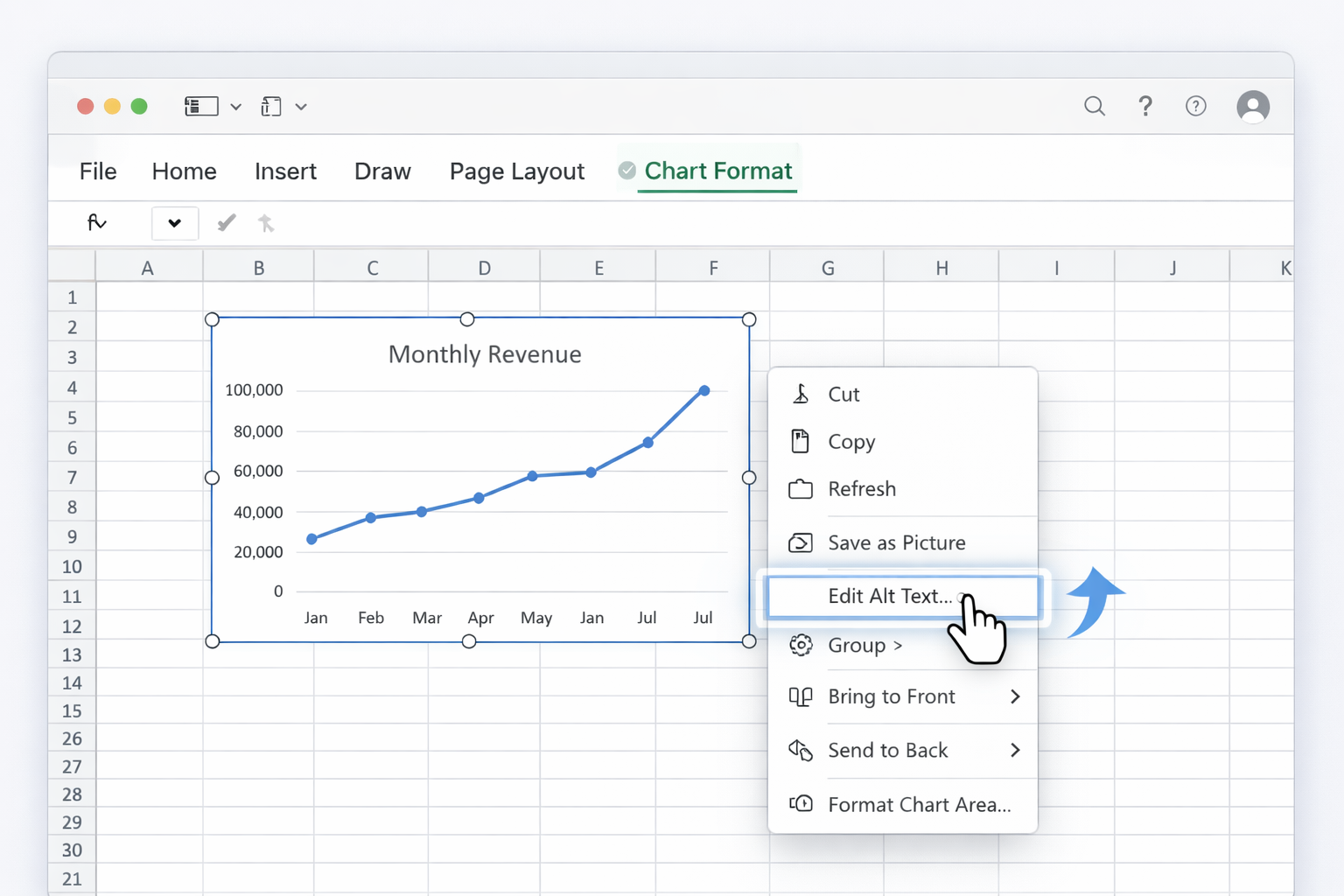
Right-click the chart and select Alt text.
Or use the top menu: Format > Alt text (in some interfaces, Insert > Alt text).
Fill in title and description
Title (optional but useful in Sheets): short label such as Monthly leads by channel.
Description (required for accessibility): 1–2 sentences capturing:
Chart type and metric (bar chart of leads by channel).
Key patterns (search leads double other channels; social flat).
Where the data sits (Data in Leads_2025 sheet, A1:D13).
Example: Bar chart showing monthly leads by acquisition channel. Search consistently outperforms social and email. Data in Leads_2025 sheet, cells A1:D13.
Keep it focused
Avoid purely visual adjectives that don’t add meaning.
Do not repeat nearby body text word for word.
Pros (manual Sheets):
Simple for occasional charts.
Works in browser on any OS.
Cons:
Cumbersome for large, multi‑tab reports.
Easy to miss a chart when deadlines are tight.
2. No‑code automation methods
If you manage recurring reports, you can reduce the manual effort before you ever touch an AI agent.
2.1 Use templates and checklists
Create a reporting template workbook in Excel and Google Sheets.
Pre‑insert chart objects with placeholder alt text fields.
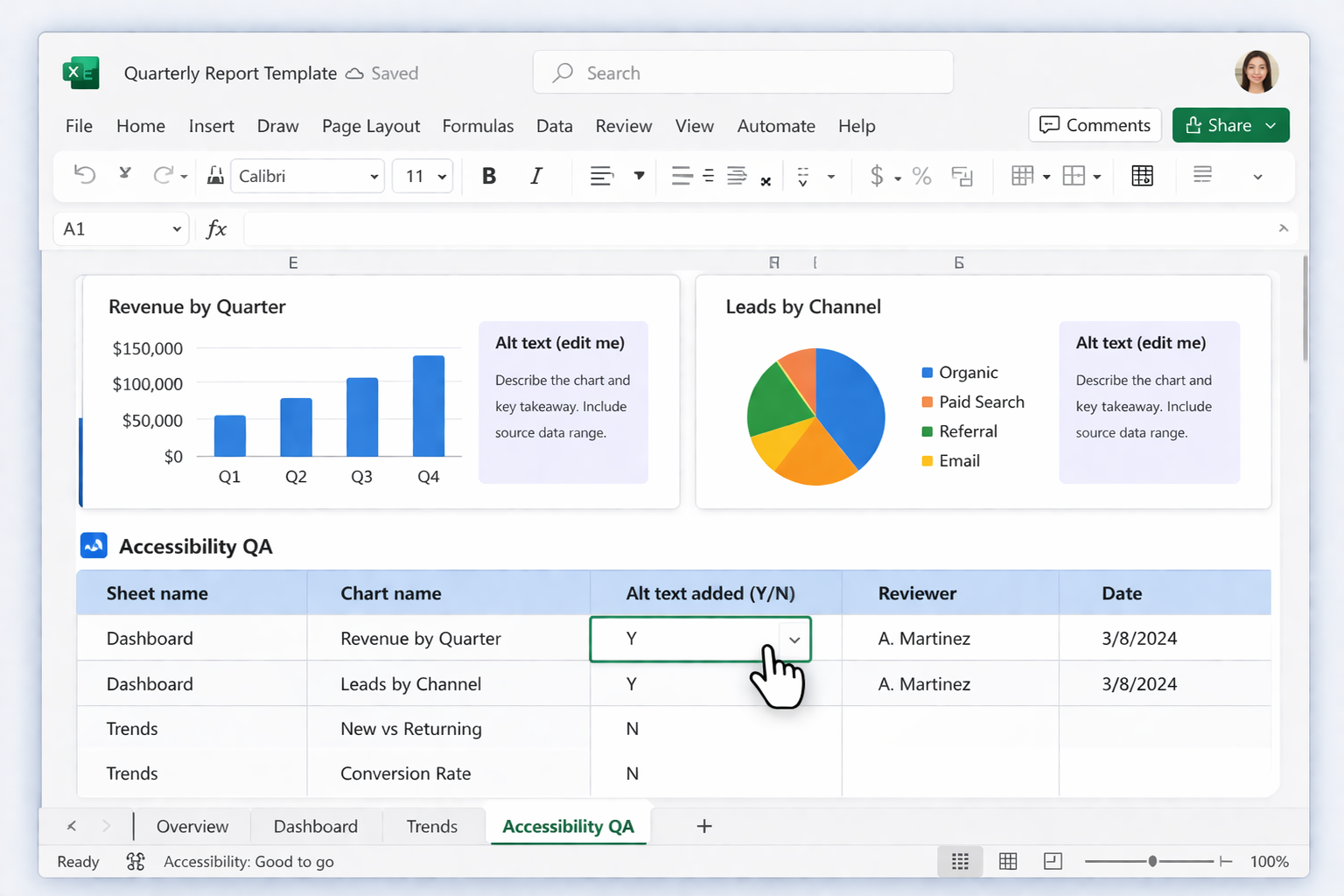
Add a checklist tab called Accessibility QA:
Columns: Sheet name, Chart name, Alt text added (Y/N), Reviewer, Date.
Before sending any report, a junior team member or VA runs through the checklist and fills alt text.
Pros:
Zero tooling overhead.
Encodes best practices into your templates.
Cons:
Still relies on human discipline.
Time cost scales linearly with number of charts.
2.2 Use no‑code automation tools around your files
Tools like Zapier, Make, or Power Automate cannot directly edit chart alt text today, but they can orchestrate the workflow around it:
Trigger on file events
Trigger: when a new Excel file is saved in SharePoint/OneDrive, or a new Google Sheet is added to a Drive folder.
Generate draft descriptions
The automation sends metadata (file name, sheet name, maybe CSV data extracted via an API or export) to an LLM to generate suggested alt text for each chart.
Deliver tasks to humans
Post the LLM‑generated suggestions into a task tool (Asana, ClickUp, Jira) for a content owner to paste into Excel or Sheets.
Pros:
Cuts the thinking time: humans mainly copy, tweak, and paste.
Useful stepping stone before full AI agents.
Cons:
Still requires manual clicks inside Excel and Sheets.
Integrations can be brittle across enterprise environments.
2.3 Use Office built‑in automatic alt text (Excel only)
Excel has an automatic alt text feature using Microsoft AI.
In Excel, open File > Options > Accessibility.
Under Alt Text, enable the option to generate alt text using AI.
Insert or select a chart, then open the Alt Text pane.
Let Excel suggest a description and then refine it manually to mention the main trend and data location.
Pros:
Very low friction; no extra tools.
Cons:
Descriptions can be generic or inaccurate.
Does not know your business context or reporting standards.
3. Scaling with AI computer agents (Simular)
For agencies, sales ops, or marketing teams shipping dozens of spreadsheets every week, the real win is to offload the entire repetitive sequence to an AI computer agent that behaves like a tireless teammate.
3.1 Agent pattern: alt text sweeper for Excel
With a desktop‑capable AI agent such as Simular Pro, you can:
Configure the workflow
Define a playbook: open a specified Excel file, iterate through each sheet, select each chart object, open the Alt Text pane, and read related data ranges.
Let the agent read the data
The agent can navigate from the chart to its underlying table (using Select Data or linked ranges), scan headers and values, and infer patterns.
Generate and apply alt text
For each chart, the agent drafts 1–2 sentences describing chart type, key trend, and table location, then pastes it into the Alt Text description box.
Run at scale
Drop 10, 50, or 200 workbooks into a folder; the agent sweeps through them in a single run.
Pros:
True end‑to‑end automation: no human clicking.
Consistent phrasing across all reports.
Transparent execution in Simular Pro: you can inspect every step.
Cons:
Needs careful initial configuration and testing.
Best suited once you have stable reporting templates.
3.2 Agent pattern: cross‑suite alt text for Google Sheets
Even though Sheets lives in the browser, a Simular agent can still operate:
The agent launches a browser, opens the target Google Sheet, and signs in.
It selects each chart, opens the Alt text dialog, and inspects the associated data range via the chart editor.
Using its language capabilities, it writes concise descriptions tailored to your audience (for example, campaign performance summary for a client).
It repeats this across multiple Sheets files listed in a tracker or Drive folder.
Pros:
Works across both Google Sheets and Excel workflows from one agent.
Perfect for agencies managing many client workbooks.
Define your Simular Pro agent to log into Google Sheets and Excel, open each chart, and follow official alt text steps while learning your wording style.
Test and fine tune agent
Run Simular on a small Excel and Google Sheets set, review its alt text, tweak prompts and constraints until it reliably passes your accessibility checklist.
Delegate and scale tasks
Point Simular at your reporting folders, trigger runs via webhook, and let the agent keep chart alt text in Excel and Google Sheets updated across clients.
Learn how to automate Google Sheets
Use Google Sheets to add clear, concise alt text to charts so screen readers can describe your data story, boosting accessibility and SEO-friendly reporting.


.svg)