Hoppla! Beim Absenden des Formulars ist etwas schief gelaufen.


.svg)
On its own, GETPIVOTDATA is like a sniper rifle for your pivot tables. Instead of pointing at cell C12 and hoping the layout never changes, you ask for exactly what you want: "Sales" for Product = "Almond" in Region = "East". Excel and Google Sheets then return that value based on structure, not location. Your dashboards stay intact even when someone adds new fields, inserts rows, or rearranges the pivot. For sales, marketing, or agency reporting, that stability is gold—you can trust that every metric is still pointing at the right slice of data.
Now layer an AI computer agent on top. Instead of humans writing and maintaining dozens of GETPIVOTDATA formulas, the agent can open Excel or Google Sheets, build pivots, generate field/item pairs, test results, and wire everything into your reporting templates. The moment your data model or pivots change, the agent updates formulas, fixes #REF! errors, and pushes fresh numbers into decks, CRM notes, or client dashboards—without you touching a cell. Delegating GETPIVOTDATA work means your team designs the questions; the agent does the clicking, typing, and checking.
1.1 Build a PivotTable / Pivot table first
Before GETPIVOTDATA can do anything, you need a pivot.
In Excel:
In Google Sheets:
1.2 Let Excel auto-generate GETPIVOTDATA
This is the fastest way to learn the syntax.
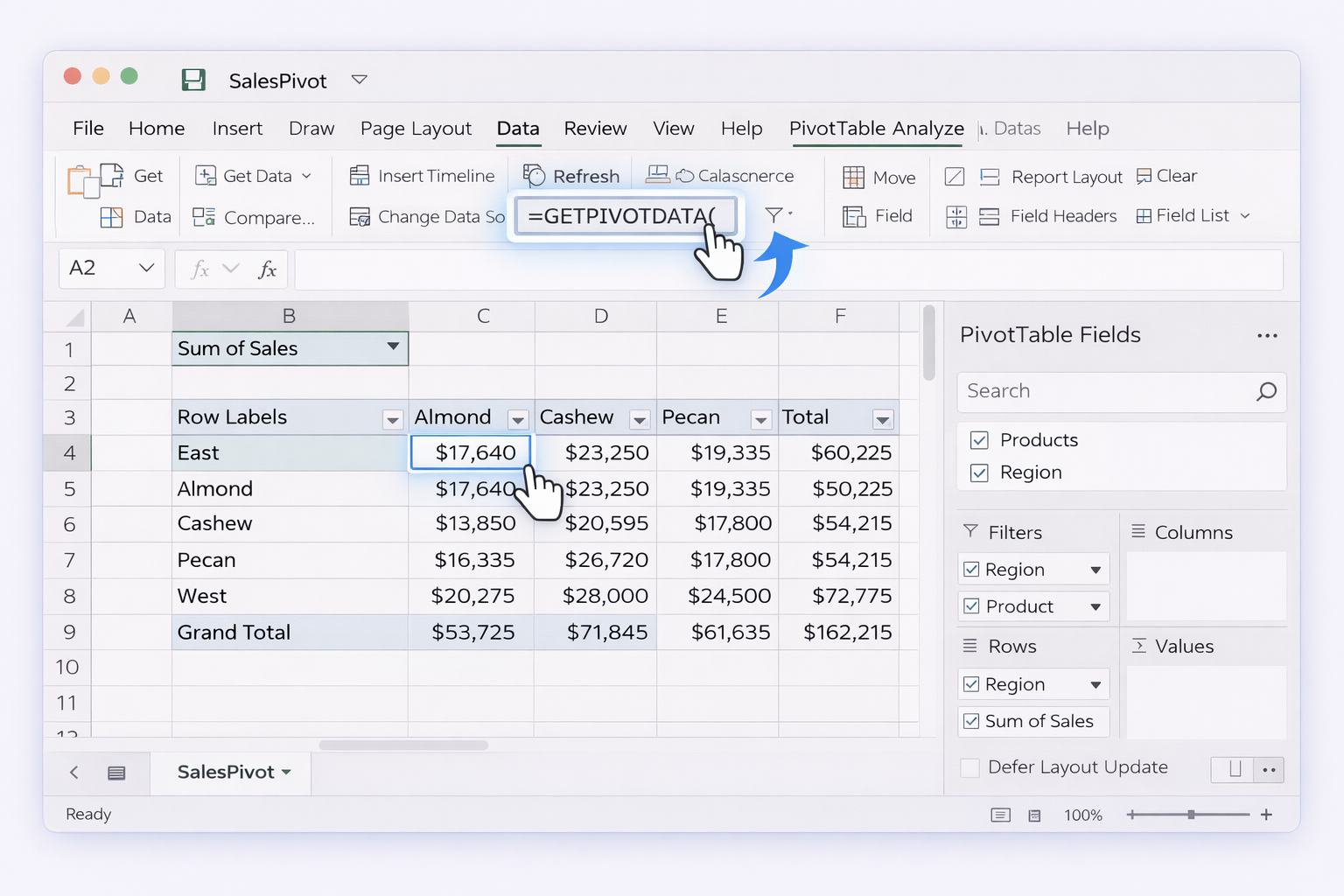
=.=GETPIVOTDATA("Sales",$B$4,"Region","East","Product","Almond")If you hate this auto-generation, toggle it off: PivotTable Analyze ▸ Options ▸ uncheck “Generate GetPivotData”.
1.3 Manually write GETPIVOTDATA (Excel)
Once you know the field names, you can type formulas directly.
=GETPIVOTDATA("Sales Amount",$A$3,"Region","West","Product","Hazelnut")
1.4 Use cell references for dynamic criteria
=GETPIVOTDATA("Sales Amount",$A$3,A10,B10,A11,B11)
1.5 GETPIVOTDATA in Google Sheets
In Sheets, the function behaves similarly.
= then click the pivot cell.=GETPIVOTDATA("Sum of Sales", A3, "Region", "East", "Product", "Almond")
Manual work is fine for a single report. Agencies, revenue teams, and ops leaders, however, usually maintain dozens of recurring dashboards. Here’s how to scale without learning VBA or Apps Script.
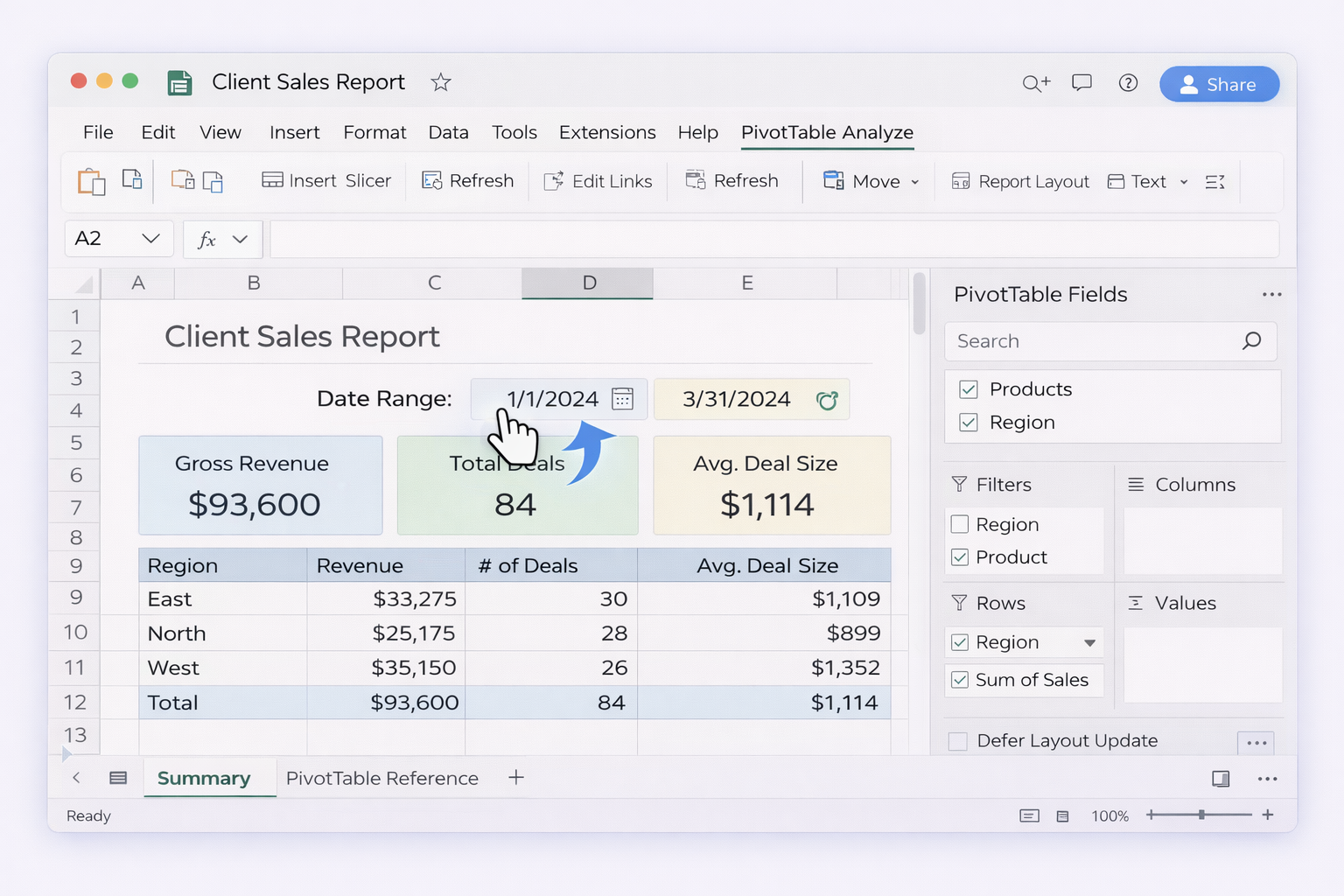
2.1 Template-driven reporting in Sheets / Excel Online
2.2 Use connectors (e.g., Excel Online + Power Automate)
With Microsoft Power Automate:
2.3 Google Sheets + Apps Script-lite automations
Even without deep coding:
2.4 Zapier / Make scenarios around summary sheets
Tools like Zapier and Make can:
You never automate the function itself—just everything around it so humans aren’t babysitting.
Manual and no-code flows still assume someone knows where fields live, how pivots are structured, and what broke when a #REF! appears. This is where an AI computer agent, such as an autonomous desktop agent, changes the game.
3.1 Agent as your spreadsheet operator
At a high level, an AI computer agent can:
Pros:
Cons:
3.2 Agent to maintain fragile GETPIVOTDATA forests
Sales teams, agencies, and finance leaders often inherit workbooks with dozens of GETPIVOTDATA formulas that silently break when:
An AI agent can:
#REF! errors, suggest or apply fixes (e.g., mapping old field names to new ones based on similarity).
Pros:
Cons:
3.3 Agent-driven multi-entity reporting
For multi-brand agencies or multi-entity finance teams:
Pros:
Cons:
For the official mechanics of the function itself, always anchor your understanding in:
Once you know what GETPIVOTDATA can do structurally, an AI agent simply becomes the tireless assistant that builds, checks, and scales those formulas across every workbook and client you care about.