
Wir stellen SimuLang vor: Playwright für den gesamten Desktop
November 19, 2026
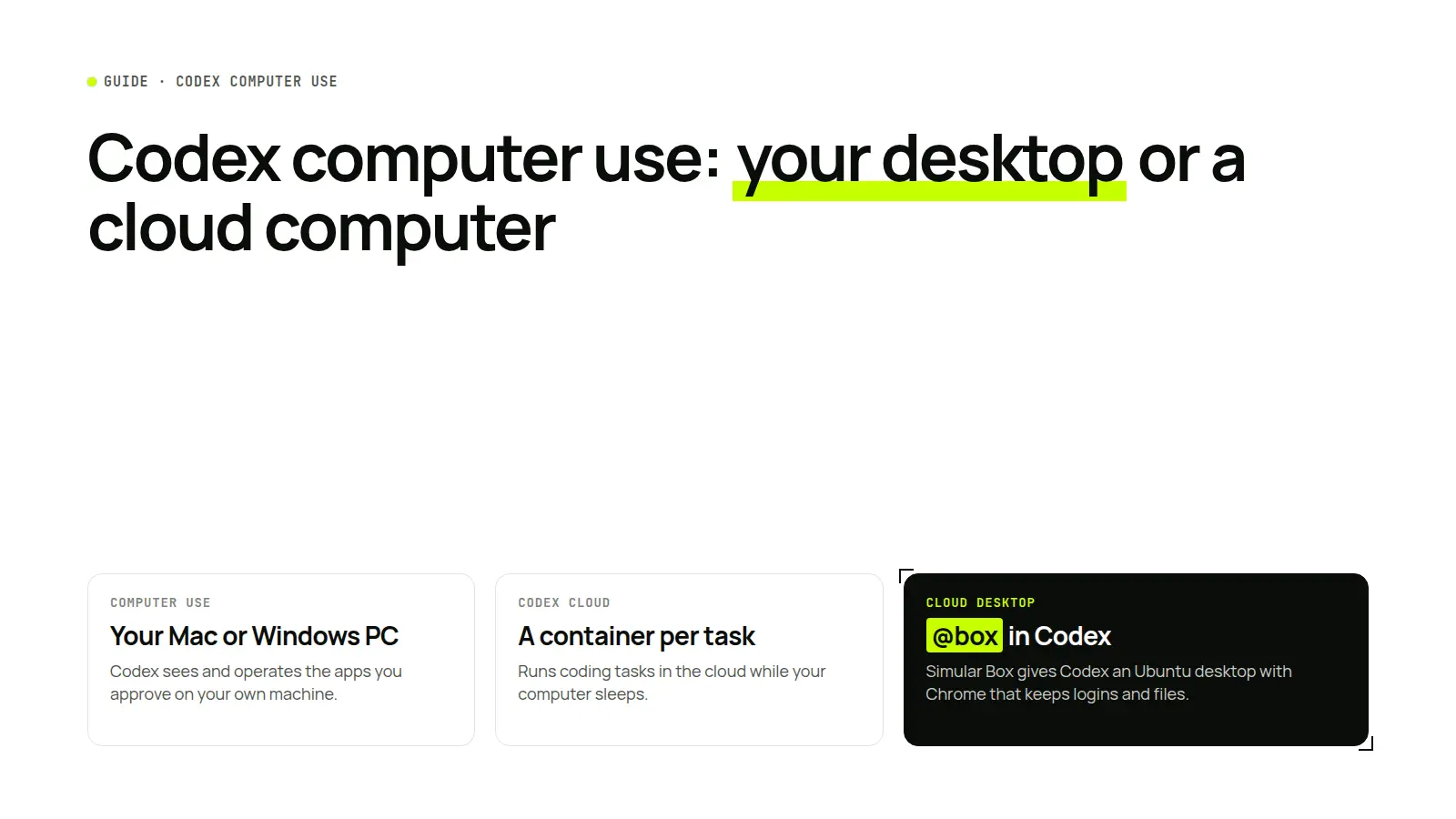
Short answer: Codex Computer Use lets Codex, in the ChatGPT desktop app, see and operate apps on your own Mac or Windows PC: a desktop app it is building, your browser, or settings behind a few clicks. It works on the computer in front of you. Codex Cloud is different: it runs coding tasks in a cloud workspace that keeps going while your computer sleeps, with a terminal and, when enabled, a browser for your web app. If Codex needs a full cloud desktop with Chrome that keeps its logins, connect Simular Box and mention @box in your request.
This guide explains each option and when to use which, based on OpenAI's documentation as of November 19, 2026.
Codex Computer Use vs Codex Cloud vs a cloud computer
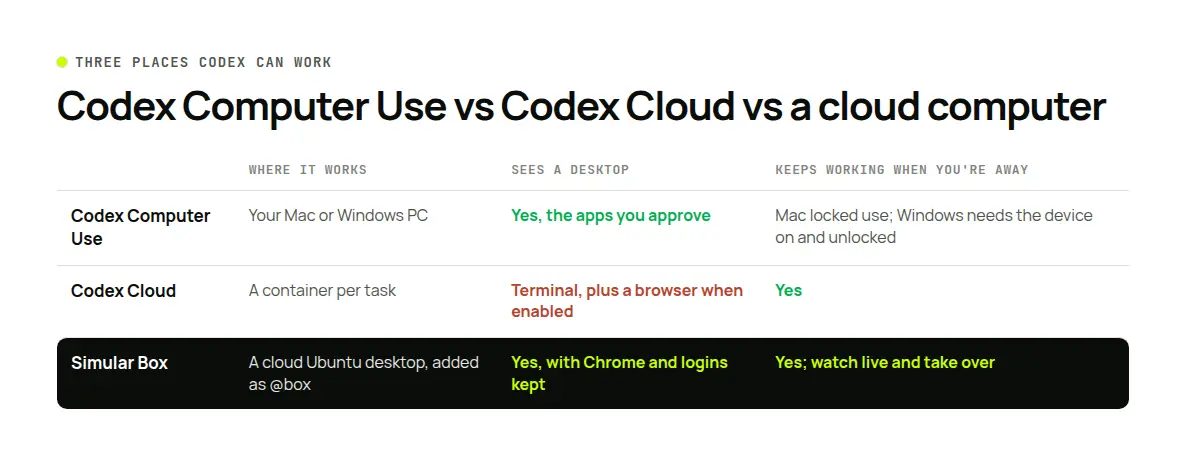
| Codex Computer Use | Codex Cloud | Simular Box with Codex | |
|---|---|---|---|
| Where Codex works | Your Mac or Windows PC | A cloud workspace per task | A cloud Ubuntu desktop |
| What it sees | The apps you approve | A terminal; a browser for your app when enabled | Chrome, files and a terminal on a full desktop |
| Your computer can sleep | No (macOS has an opt-in locked use) | Yes | Yes |
| Logins | Your own apps' sign-ins | None of yours | Signed in once on the box; they stay |
| Best for | Testing desktop apps, GUI-only settings | Coding tasks you review as a diff or PR | Signed-in web work, visual checks, work shared with other agents |
What Codex Computer Use does
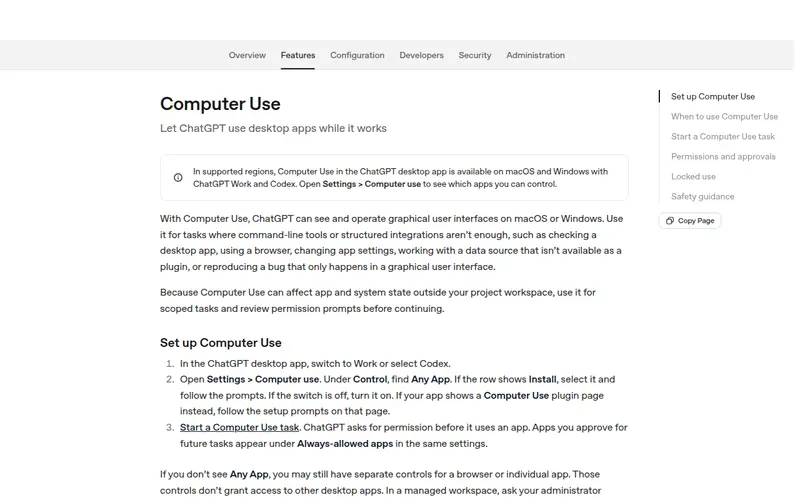
Computer Use lets ChatGPT and Codex see and operate graphical interfaces on macOS or Windows. It is available in the ChatGPT desktop app with ChatGPT Work and Codex, in supported regions. OpenAI's own examples:
- testing a macOS app, Windows app or iOS simulator flow that Codex is building;
- a task that needs your web browser;
- reproducing a bug that only appears in the interface;
- changing app settings that need clicks;
- reading data from an app that has no plugin;
- a workflow that spans several apps.
Turning it on. In the desktop app, switch to Codex, open Settings > Computer use and enable Any App. Then mention @Computer or an app name, such as @Chrome, and describe the exact window or flow. Codex asks before it uses each app; Always allow saves that choice.
Permissions. On macOS you grant Screen Recording (to see) and Accessibility (to click and type). Workspace admins can restrict which apps Computer Use reaches or turn it off.
OpenAI's own advice: if the app has a plugin or MCP server, use that for data and repeatable steps, and use Computer Use when Codex needs to look at or operate the interface. For a web app you are building locally, OpenAI suggests the built-in browser first.
Where Codex Computer Use stops
- It uses your computer. On macOS, Codex can work in background windows while you keep working. On Windows it runs in the foreground and moves your pointer, so OpenAI suggests keeping the device unlocked, or running the ChatGPT app inside a Windows virtual machine.
- Locked Macs need opt-in. macOS "locked use" lets a task continue after the Mac locks, through a narrow, short-lived unlock that ChatGPT covers with a screen and cancels if it detects local input.
- Your machine has to be on and online for any of this. Close the laptop and the task waits.
Codex Cloud: coding tasks that run without your computer
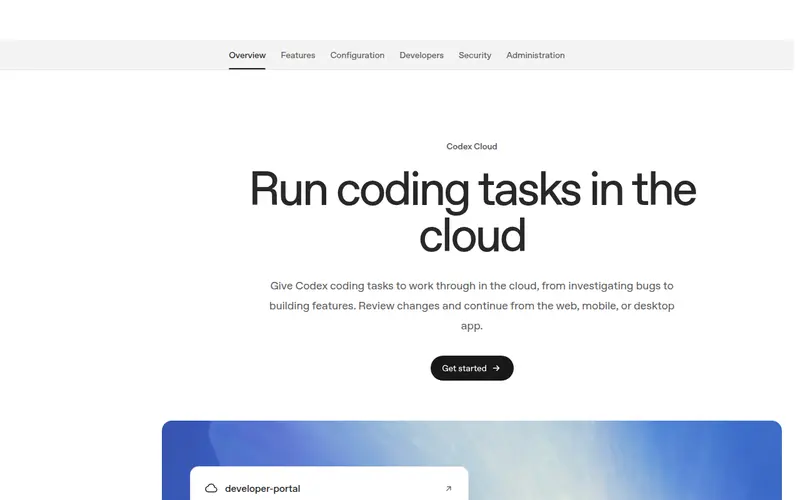
Codex Cloud runs coding tasks in the cloud, started from the web or desktop app (Work in > Cloud) or from Codex on mobile. Each task gets its own workspace and, per OpenAI, can keep working while your computer is asleep. You review the changed files, ask for follow-ups and open a pull request.
- Environments hold your repositories, dependencies and tools; you can publish one for reuse.
- A browser for your app. When a cloud task has browser access, Codex can open the web app it started in the task, reproduce a bug and screenshot the result.
- Network is controlled per environment, and secrets are handled in environment settings.
Codex Cloud is built for code. It is not a desktop with your apps, and its browser is for the app under test, not your signed-in accounts. The older Codex Cloud (Legacy) environments page still covers Code Review and the GitHub and Linear integrations.
Give Codex a cloud computer with Simular Box
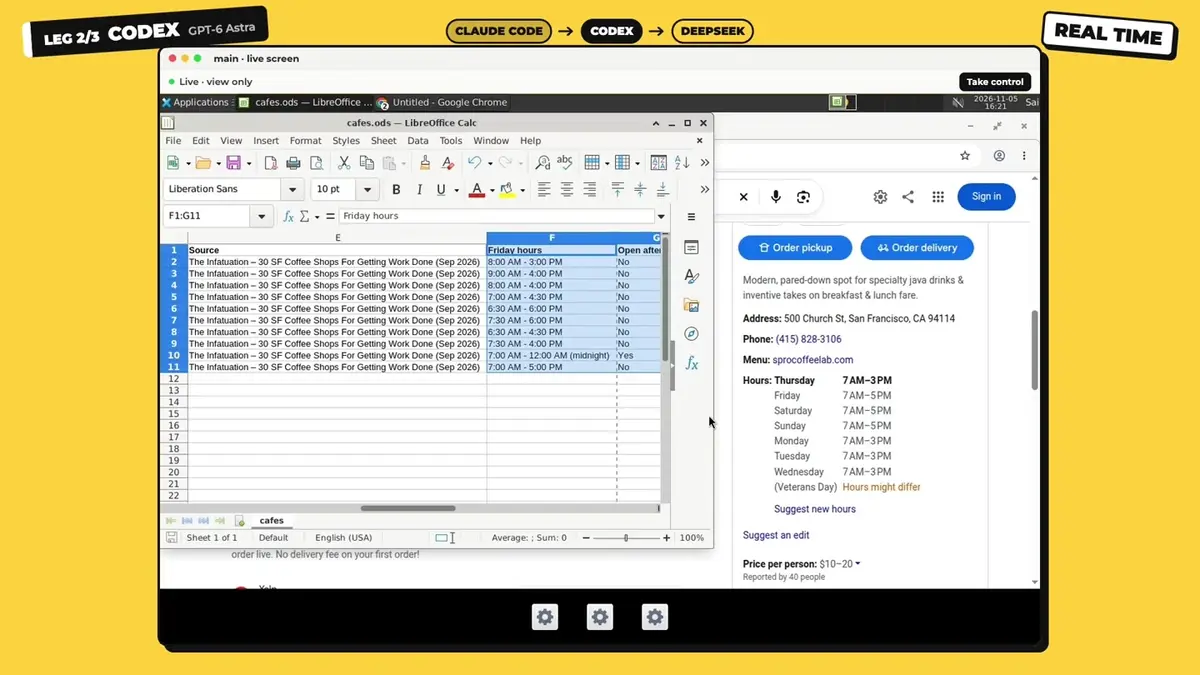
Between "your own desktop" and "a cloud terminal" sits a third option: a cloud desktop that Codex reaches over MCP. Simular Box gives Codex a full Ubuntu desktop with Chrome, files and a shell, and it works in the Codex app and the Codex CLI.
- Mention @@PROTECT3@@ in your request, or pick it under + > Apps, so Codex does not reach for a different file-storage app named Box.
- Logins stay. Sign in once on the box with Take control (in the Codex app it opens in the built-in browser), and later tasks reuse the session.
- Watch it work in the live view and take over for a 2FA code or a payment.
- Run it headless.
codex execcan use box tools once you approve them for the run; see Headless agents. - Hand off between agents. Claude Code or ChatGPT can take turns on the same box and pick up the files Codex left; see Claude Code and Codex together.
Setup steps are in the box docs for the Codex app and the Codex CLI. Pricing starts with $5 of free credit; Small is $19 a month and Medium, which never sleeps, $39.
Example tasks:
- "@box open our staging site in Chrome, sign-in is already saved, and check the new billing page at three window sizes."
- "@box download last week's report from the analytics dashboard and summarize the changes."
- "@box run the end-to-end test, open the failing page and screenshot the error."
Which should you use?
- Codex is building a desktop app, or the task lives in an app on your machine: Codex Computer Use.
- The task is code you want back as a diff or pull request, with your laptop closed: Codex Cloud.
- The task needs a browser signed in to real accounts, a desktop you can watch, or a machine shared with Claude Code: Simular Box with
@box.
Comparing the two coding agents themselves? See Codex vs Claude Code.
FAQ
What is Codex Computer Use?
A feature of the ChatGPT desktop app that lets Codex and ChatGPT Work see and operate apps on your Mac or Windows PC. You turn it on under Settings > Computer use and approve each app.
Does Codex Computer Use work on Windows?
Yes. On Windows it runs in the foreground on the active desktop, so keep the device unlocked or run the ChatGPT app in a Windows virtual machine.
Can Codex use my browser?
Yes, through Computer Use with @Chrome, or through the ChatGPT app's built-in browser, which keeps its own profile.
What is the difference between Codex Computer Use and Codex Cloud?
Computer Use operates apps on your own computer. Codex Cloud runs coding tasks in a cloud workspace that keeps going while your computer sleeps.
Can Codex use a computer in the cloud?
Codex Cloud gives each task a cloud workspace for code. For a cloud desktop with Chrome and saved logins, connect Simular Box and mention @box.
Is Codex Computer Use safe?
Codex can act only in apps you allow, asks before using each one, and may ask before sensitive actions. Admins can restrict or disable it. Keep tasks scoped and review permission prompts.
Sources
- OpenAI: Computer Use · Codex Cloud · Codex Cloud (Legacy) environments · Browser
- Simular: box MCP docs: Codex app · Headless agents
- All checked November 19, 2026.
Autonome Computer zu bauen bedeutet nicht, Menschen zu ersetzen. Es bedeutet Zusammenarbeit.
Befreie deine Hände vom Computer. Laden Sie Simular noch heute kostenlos herunter.
