
哎哟!提交表单时出了点问题。

.svg)
If you run a sales or marketing operation, you live in spreadsheets. One broken formula in Google Sheets can ripple into bad ROAS, wrong commissions, or blown forecasts. Absolute references are the quiet safety rails that stop this. By locking a tax rate, target CPA, or exchange rate, you make sure every copied formula points to the same trusted cell. The F4 (Windows) or fn+F4 (Mac) shortcut lets you add those dollar signs in seconds instead of hunting and pecking.
Now imagine an AI computer agent sitting at your desktop, opening your revenue models, and fixing every missing dollar sign automatically. Instead of interns combing through hundreds of formulas, you brief the agent once. It navigates Google Sheets like a human, applies absolute references where needed, logs what changed and hands back a clean, trustworthy model you can scale campaigns on.
When your forecasts, media plans, or client reports live in Google Sheets, absolute references are non‑negotiable. Locking a cell with dollar signs keeps key values – tax rates, targets, multipliers – stable as you copy formulas across rows and columns. Done right, your models stay accurate. Done manually at scale, it is tedious and error‑prone.
Below is a practical guide for busy business owners, agencies, and marketers. We will start with hands‑on shortcuts, move into no‑code automation, then finish with how an AI computer agent can take this off your plate entirely.
These methods are perfect when you are building or debugging a sheet yourself.
This is the core shortcut documented in Google’s help center: https://support.google.com/docs/answer/181110
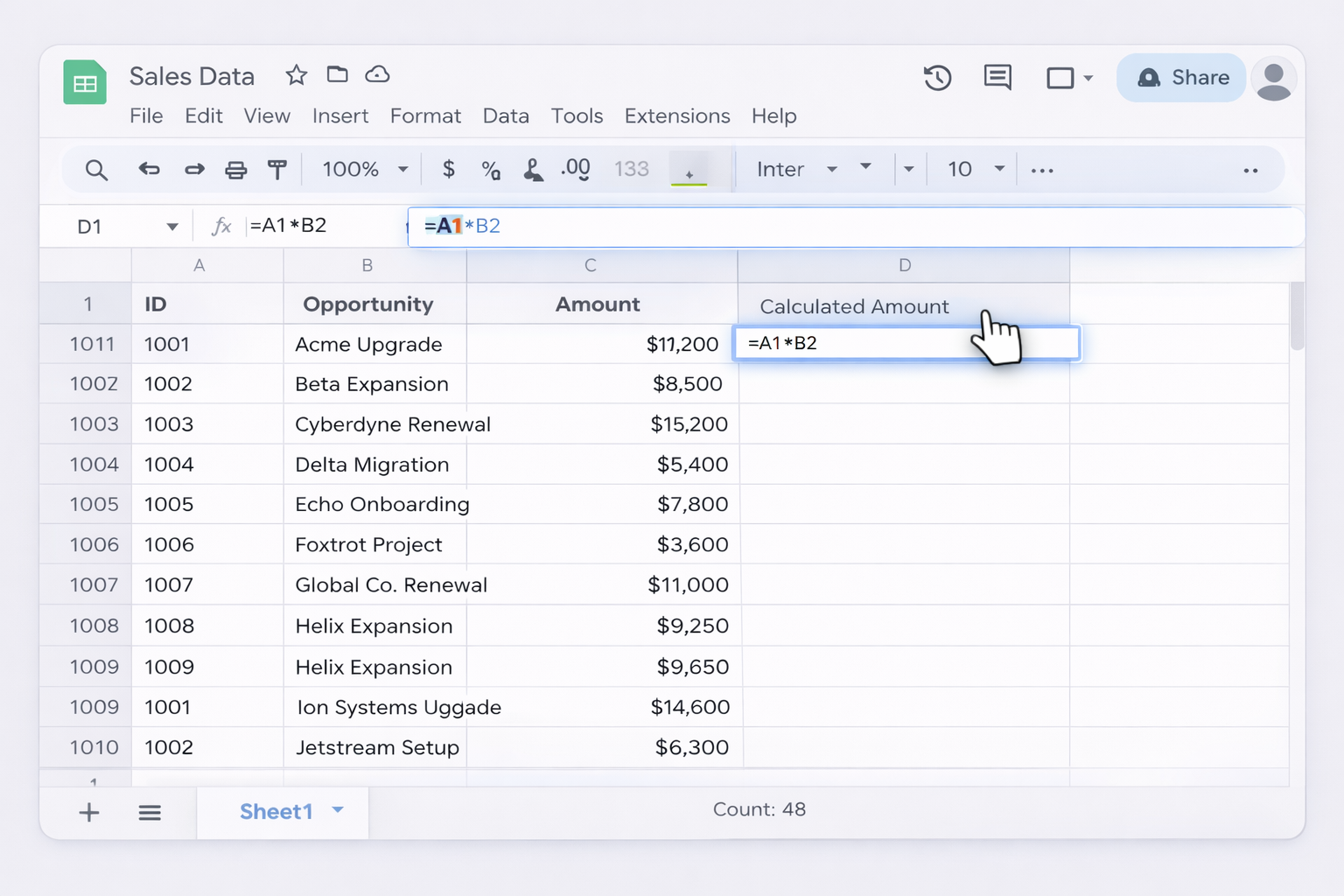
On Windows / ChromeOS
=A1*B2).$A$1).$A1 (lock column only), A$1 (lock row only), then back to A1.
On Mac (per Google and community answers)
$A$1, $A1, A$1, and A1.Tip: On Mac laptops, make sure "Use F1, F2, etc. keys as standard function keys" is configured in System Settings if F4 is triggering media controls instead of the shortcut.
For small sheets or when you need precision:
$ before the column letter and/or row number you want to lock. For example:A1 → $A$1 to lock both.A1 → $A1 to lock only the column.A1 → A$1 to lock only the row.The benefit is total control; the downside is speed – this does not scale beyond a few dozen cells.
If you have a long column of formulas referencing a single range (for example Sheet2!K9, Sheet2!K10, etc.), you can bulk convert them:
!(\w+?)(\d+) – this matches references like !K9, !AB12.!$$$1$$$2 – this injects dollar signs before the column and row.This trick (shared by power users on Stack Overflow) can turn hundreds of relative references into absolute ones in seconds. Test it on a copy first.
Manual shortcuts are fine for one‑off fixes, but agencies and rev‑ops teams often manage the same patterns across dozens of similar sheets: client templates, campaign models, territory plans. No‑code tools can automate parts of this, especially when formulas follow predictable patterns.
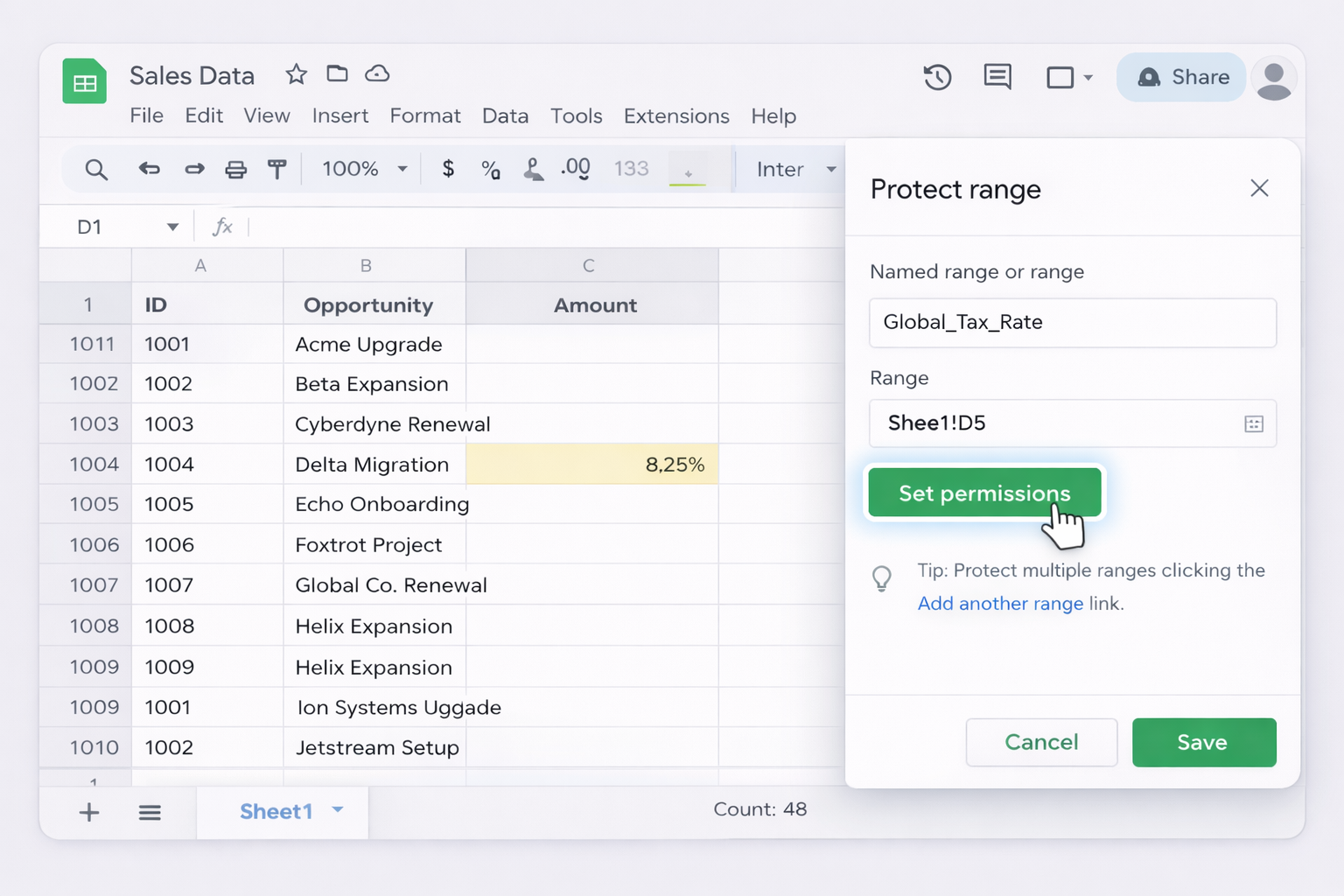
While this does not add dollar signs, it is a pragmatic workaround: lock the cells once, then prevent accidental edits.
Global_Tax_Rate).Now your formulas can reference that cell, and only trusted users can change the underlying value.
Official docs: https://support.google.com/docs/answer/1218656
Some add‑ons and lightweight Google Apps Script snippets can scan a sheet and convert specific references to absolute ones:
A1 pointing to configuration rows, and rewrite them as $A$1.This still needs someone technical to set up, but once written it becomes a reusable utility for your team – a halfway house between manual and full AI automation.
For agencies onboarding many clients:
Instead of fixing references every time, you fix the template once.
At some point, your bottleneck is not knowledge of F4 – it is time. If your team keeps inheriting messy Google Sheets from clients, partners, or old employees, you need something that works like a meticulous assistant, not just another shortcut.
This is where an AI computer agent like Simular’s desktop agent becomes powerful. It can navigate the actual Google Sheets UI in your browser, apply shortcuts, and log changes with production‑grade reliability.
Workflow story:
Your agency has 120 active client dashboards. Each month, someone discovers a broken forecast because a copied formula lost its link to the master rate cell. Instead of assigning a junior analyst to inspect each sheet, you:
Summary, Forecast).
Pros:
Cons:
When new team members or clients create sheets from scratch, they often forget absolute references entirely.
You can configure an AI agent to:
Pros:
Cons:
For CFOs or CMOs who want control, you can keep a human in the loop:
This balances safety with speed, and because Simular’s agents are transparent, operations teams can inspect every action.
For background on Simular’s approach to desktop‑grade agents, see: https://www.simular.ai/simular-pro

.svg)
