Oops! Something went wrong while submitting the form.
Sai pulls fresh values from your source, updates the data columns, and skips any row carrying a manual annotation. Each run is logged with a timestamp and the number of rows changed. A failed run sends a Slack message rather than leaving stale data in place.


The recording is a real session. The sheet on the right is what it produced.
Sai opens each profile, pulls the signal, and writes the row, live, in a real browser.
Eight columns, sorted by score, with a source link behind every claim.
The sheet URL, the data source, which columns hold data, which column holds manual annotations, and the key columns to match on. A Slack workspace if you want failure alerts.
The sheet updated in the data columns, with annotated rows untouched. A log row per run recording timestamp, rows updated, rows skipped, rows appended, and rows with no source match. A Slack message if a pre-write check fails.
Schedule it to match the source's update cycle. A weekly source does not benefit from a daily run — it produces log rows showing zero changes.
Three approaches cover most cases.
Apps Script is Google's built-in scripting environment. A time-driven trigger runs a function on a schedule; an onEdit trigger runs it when a cell changes. It is free, runs on Google's infrastructure, and has full access to the Sheets API. It requires writing JavaScript.
Zapier, Make and n8n connect Sheets to other applications without code. They provide Update Row and Add Row actions, run histories, and retries. They are configured through an interface and priced per task or per operation.
Built-in features — IMPORTRANGE, IMPORTHTML, IMPORTDATA, and macro recording — handle the simpler cases without either.
All three can update a sheet on a schedule. That part is a solved problem.
The default behaviour of each is to write over the target range.
An Apps Script update loop writes the values it was given to the rows it was told to write. A Zapier Update Row action replaces the fields it was mapped to. IMPORTRANGE replaces its entire output range and cannot be edited in place at all.
This is correct behaviour when the sheet holds only machine-written data. It is a problem when the sheet also holds human-written data, which is the common case.
A tracking sheet usually contains two kinds of column.
Data columns hold values pulled from a source — prices, counts, dates, statuses. They are meant to be replaced on each update.
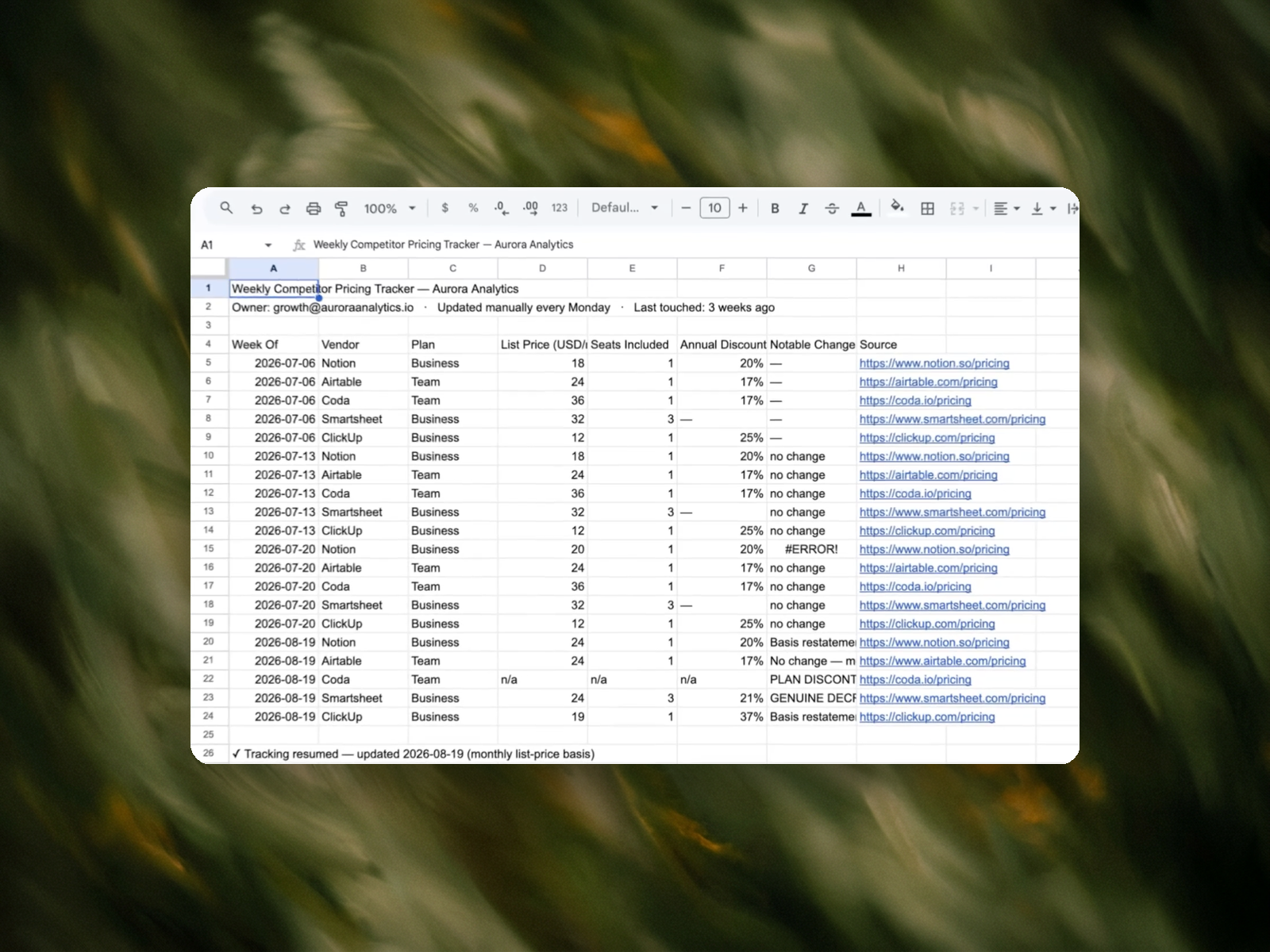
Annotation columns hold judgments someone made after looking at the data. In the example sheet, column G contains entries like no change, Basis restatement, GENUINE DECREASE, and PLAN DISCONTINUED. None of these can be derived from the source. Each represents someone comparing this week against last week and deciding what the difference meant.
An update that treats the sheet as a single range overwrites both. The data is replaced correctly; the judgments are lost, and there is no record that they existed.
The usual response is to stop automating the sheet. The example sheet shows the outcome: "Updated manually every Monday · Last touched: 3 weeks ago." It also carries an #ERROR! in one row and n/a across another, which is what manual maintenance produces when it lapses.
Rows carrying an annotation are not modified in any column.
The rule is stated at the row level rather than the column level. Updating the data columns of an annotated row and leaving the note in place produces a worse result than either updating or skipping: the note now describes values that are no longer there, and reads as though it does describe them.
Skipped rows are counted and reported. A run that skips 40 of 200 rows says so. Skipping is not an error, but it is not invisible either — a growing skip count means an increasing share of the sheet is no longer being updated, which is a fact worth seeing.
Rows are matched between source and sheet using key columns, not row order.
Position-based updates break when rows are sorted, inserted, or deleted between runs — a common occurrence in a sheet people work in. The failure is silent: values are written to the wrong rows and the sheet still looks well-formed. Nothing raises an error, and the error is found later, if at all.
Key matching costs a comparison per row and removes this class of failure.
Two cases have to be defined explicitly, because a sensible-looking default in either direction destroys data.
A source row with no match in the sheet is appended, not discarded.
A sheet row with no match in the source is left in place, not deleted. A row missing from the source can mean the item is gone, or it can mean the source returned a partial result. These are not distinguishable from the sheet's side, and deleting on that basis is not recoverable.
Both counts appear in the log.
Each run appends one row: timestamp, rows updated, rows skipped, rows appended, rows unmatched, and the source used.
This makes the sheet's state legible without inspecting the data. A run that updated 0 rows and skipped 200 has a specific meaning. A run that appended 400 rows to a 200-row sheet indicates the key matching is not finding matches, which usually means the key column changed in the source.
Two-way sync. It writes to the sheet. It does not write back to the source.
Cell formatting or formulas. It writes values. Conditional formatting, validation and formulas in the sheet are unaffected but are not managed.
Row deletion. Nothing is deleted.
Sub-minute updates. It runs on a schedule. For event-driven updates on cell edit, an Apps Script onEdit trigger is the direct approach.
Replacing Apps Script. For a sheet with no annotation columns and a stable source, a time-driven Apps Script trigger does this at no cost. The rules described here are worth their overhead when a sheet holds both machine data and human judgments.