
Opa! Algo deu errado ao enviar o formulário.

.svg)
Every growth story has a spreadsheet behind it. In Google Sheets, a simple line graph can turn thousands of dry cells into a timeline of your business: revenue creeping up after a new campaign, churn dipping after a pricing change, leads spiking after a webinar. Once you know how to format your data, insert a chart, and choose the right line style, you can spot trends, seasonality, and outliers in seconds instead of staring at tables for hours.
But the real unlock is when you stop building those charts by hand. An AI computer agent can open Google Sheets, clean and structure your data, insert the right line chart, label axes, apply your brand colors, and share the file with your team—on a schedule or on demand. Instead of recreating the same report every week, you delegate the workflow once and get consistent, auditably-built graphs forever.
If you run a business, agency, or marketing team, your numbers already live in Google Sheets: traffic, leads, MRR, ad spend, signups. A line graph is the quickest way to turn that chaos into a story—showing where you’re accelerating, plateauing, or leaking.
You can absolutely build these charts manually. But when you’re updating the same dashboards every day, week, or month, the work becomes copy‑paste theatre. That’s where an AI agent like Simular steps in: it performs the same clicks you do, across desktop and browser, but tirelessly and transparently.
Below are the top ways to create line graphs in Google Sheets—first manually, then at scale with an AI computer agent.
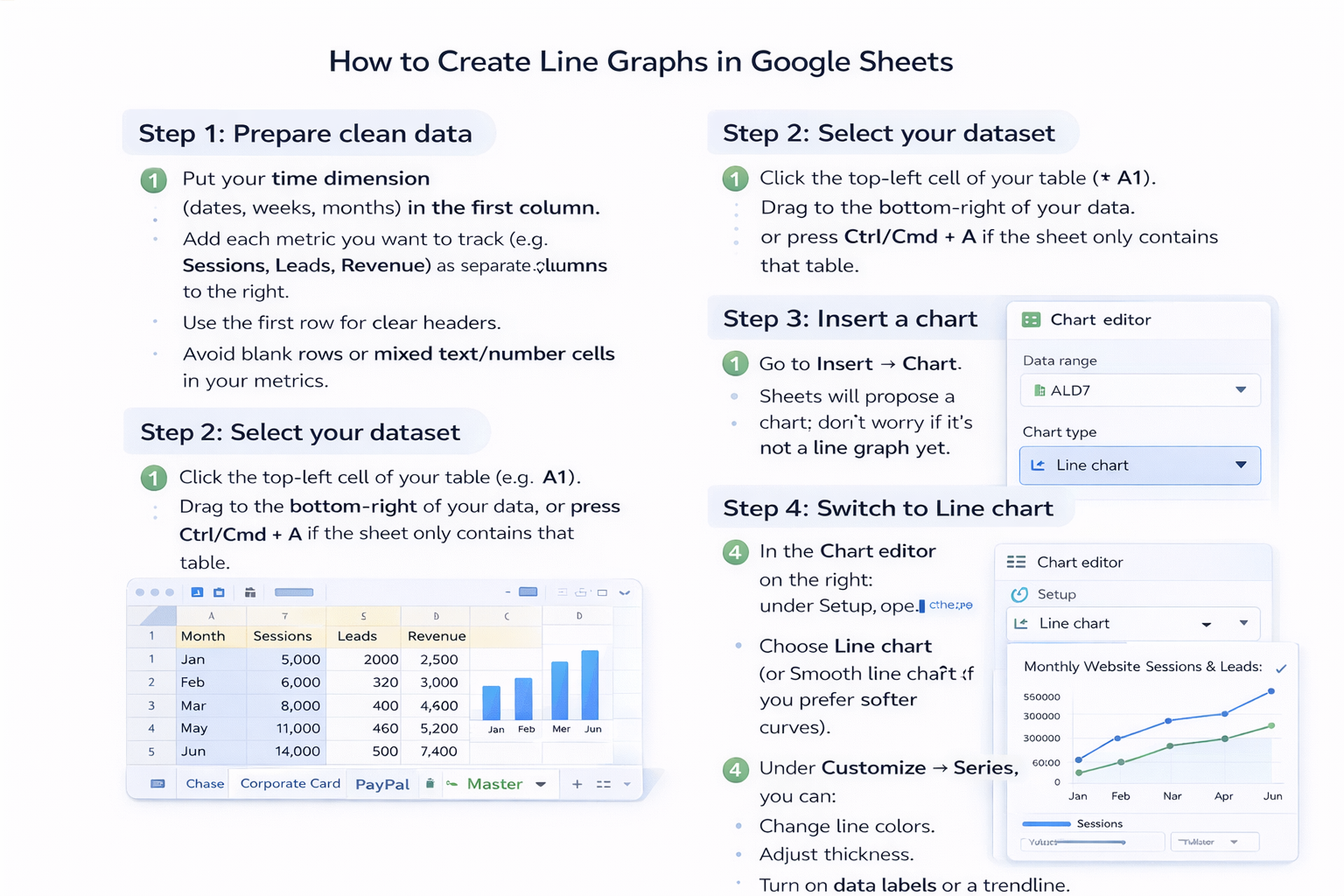
Step 1: Prepare clean data
Step 2: Select your dataset
Step 3: Insert a chart
Step 4: Switch to Line chart
Step 5: Customize for clarity
Pros (Manual)
Cons (Manual)
If you’re not ready for full AI agents, you can still cut time with built‑in Google Sheets features.
Option A: Reusable chart templates
Option B: SPARKLINE for mini trend lines
=SPARKLINE(B2:G2) where B2:G2 is a row of monthly values.
Pros (Semi‑Automated)
Cons (Semi‑Automated)
Now imagine this weekly scene:
It’s Monday morning. Instead of opening Google Sheets, pasting exports, and fixing chart ranges, you just type: “Update all client performance line graphs for last week and share links in our reporting channel.” Then you watch your AI computer agent do the work.
That’s what Simular Pro is built for: agents that use your desktop and browser like a teammate.
What the agent can do for line graphs
Example: Weekly marketing report automation
Pros (AI Agent Automation)
Cons (AI Agent Automation)
If you answer “yes” to any of these, it’s time to delegate:
In that world, your best move isn’t to click faster—it’s to let a Simular AI computer agent click for you, exactly the way you would, while you focus on what the chart is trying to tell you.

