
Wir stellen SimuLang vor: Playwright für den gesamten Desktop
November 11, 2026
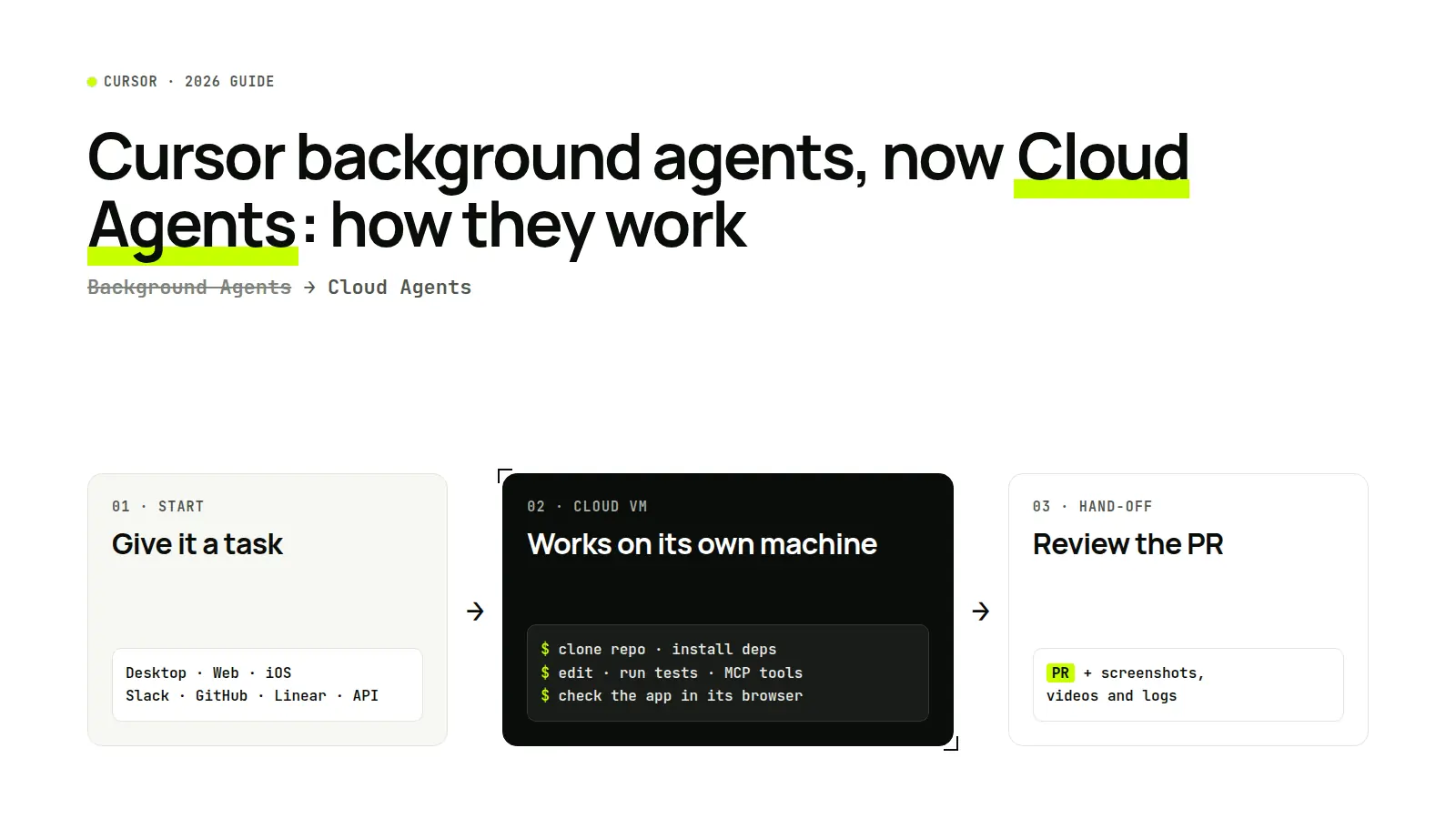
Short answer: Cursor background agents are AI coding agents that run on cloud machines instead of your laptop. Cursor now calls them Cloud Agents. You give one a task, it works in its own isolated virtual machine with a copy of your repository, and it pushes a branch or opens a pull request when it is done. You can run as many as you like in parallel, and they keep going after you close Cursor.
Definition. A Cursor background agent, now called a Cloud Agent, is an asynchronous Cursor agent that runs in a remote, isolated virtual machine with a full development environment. It clones your repo, installs dependencies, edits and runs code, tests its work, and reports back, without using your local machine.
Background agents vs Cloud Agents: what changed
Cursor first shipped Background Agents as an early preview in Cursor 0.50 in May 2025. They have since become Cloud Agents, with more ways to start them, more source-control hosts and more tools.
| Background Agents (2025 preview) | Cloud Agents (November 2026) | |
|---|---|---|
| Name in the docs | Background Agents | Cloud Agents ("formerly called Background Agents") |
| Where you start them | Mainly from the editor | Cursor desktop, cursor.com/agents, the iOS app, Slack, GitHub, Bitbucket, Linear and the API |
| Source control | GitHub | GitHub (Cloud and Enterprise Server), GitLab (Cloud and Self-Hosted), Bitbucket Cloud, Azure DevOps, or start from scratch |
| Repositories per task | One | One or several (multi-repo environments) |
| Environment setup | .cursor/environment.json | Agent-led setup, a saved snapshot or a Dockerfile, prepared in the background by Builds |
| Tools | Shell and editor | Shell, editor, MCP servers (HTTP and stdio, OAuth), hooks, computer use of the agent's desktop and browser |
| Seeing the result | Diff and branch | Pull request plus screenshots, videos and logs, and remote desktop control |
| Network | Cursor-managed | Secrets, outbound domain limits, private networks through Tailscale, or self-hosted machines |
| Billing | Max Mode models at API rates | Plan usage at the model's rate; legacy request plans at API rates plus Max Mode |
How Cursor Cloud Agents work
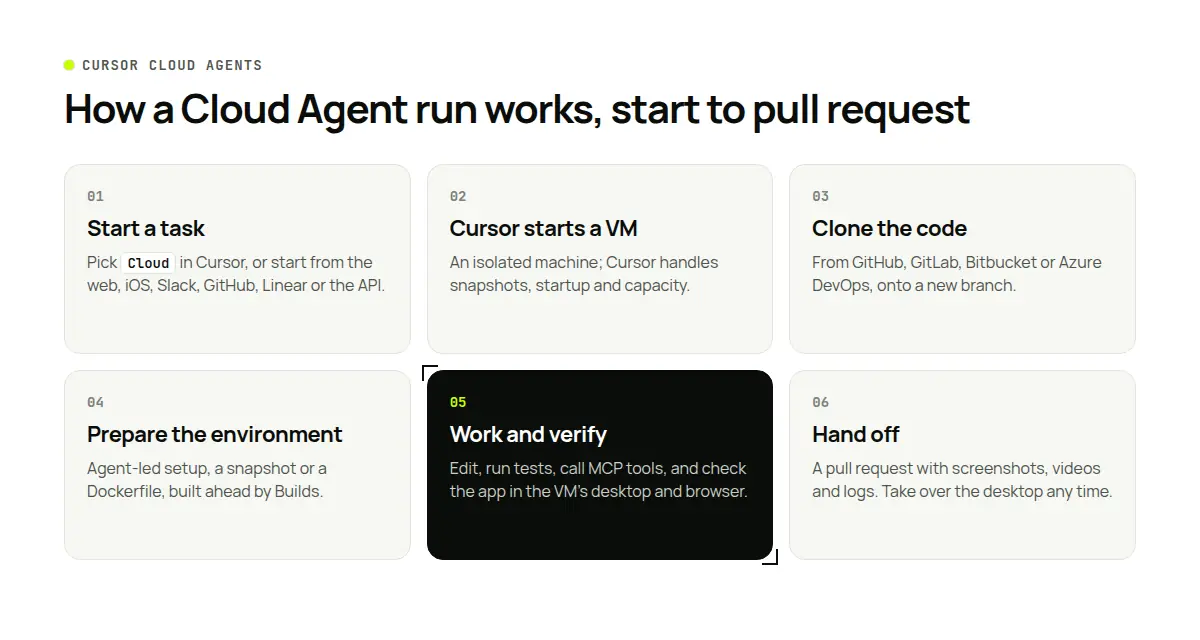
- You start a task. In the Cursor desktop app, pick Cloud in the dropdown under the agent input. You can also start one at cursor.com/agents on any device, in the iOS app, by mentioning
@cursorin Slack, Linear, or a GitHub or Bitbucket pull request, or through the API. - Cursor starts an isolated VM. It provisions the machine, isolates it from other runs, and manages snapshots, startup and capacity for you.
- The agent gets your code. It clones your repository (or several) from GitHub, GitLab, Bitbucket or Azure DevOps and works on a separate branch. You need read-write access to the repo and any submodules.
- The environment is prepared. Cursor builds the environment you defined, with dependencies, secrets and startup commands, so the agent starts with a working setup. You can inspect which environment and build a run used from the Cloud Agents dashboard.
- The agent works and verifies. It edits files, runs commands and tests, calls MCP tools, and can use the VM's desktop and browser to check the software it changed. Repository hooks in
.cursor/hooks.jsonkeep formatters and policy checks running. - You check in or take over. Open the run from any device to follow the conversation. Take control of the agent's remote desktop to try the change yourself, then release it so the agent keeps going.
- You review the hand-off. The agent pushes its branch and opens a pull request with screenshots, videos and logs showing how it verified the work. Teammates with repository access can open the run's URL to see everything.
Local agent vs Cloud Agent vs other cloud coding agents
| Cursor local agent | Cursor Cloud Agent | Claude Code cloud sessions | Codex Cloud | |
|---|---|---|---|---|
| Runs on | Your machine | Cursor's cloud | Anthropic's cloud | OpenAI's cloud |
| Laptop must stay on | Yes | No | No | No |
| Parallel tasks | Limited by your machine | Yes | Yes | Yes |
| Launch from | Editor | Desktop, web, iOS, Slack, GitHub, Bitbucket, Linear, API | Web, mobile, desktop app, terminal | ChatGPT web, desktop and mobile apps, CLI |
| Environment setup | Your machine | Setup agent, snapshot or Dockerfile | Cloud environment with a setup script | Published cloud environment |
| Output | Edits in your workspace | Branch or pull request with artifacts | Branch or pull request | Commit or pull request |
How to set up a Cloud Agent environment
- Let the agent set it up. Agent-led setup installs what your repo needs and saves it for next time.
- Use a snapshot. Save a prepared machine so later agents start faster with everything installed.
- Use a Dockerfile. For reproducible builds, point
.cursor/environment.jsonat a Dockerfile in your repo. - Add secrets carefully. Give agents only the keys the task needs, and prefer scoped, revocable tokens.
- Limit the network. Restrict outbound domains, or connect private services through Tailscale. Teams with their own hardware can use self-hosted machines.
- Add MCP servers. Add them from the MCP dropdown at cursor.com/agents: databases, issue trackers, or a cloud computer such as Simular Box.
Cursor's own advice is blunt: an agent without a working environment cannot run tests or reach your services, so it cannot close the loop on its work. Environment setup is the step that most improves results. See Cursor's Cloud Agent setup, capabilities and security pages for details.
What Cursor background agents are good at
- Fixing bugs and writing tests across a well-defined repo.
- Running several attempts at a change in parallel and picking the best.
- Picking up issues from Linear or GitHub and opening a pull request.
- Coordinated changes across a frontend, backend and shared-library repo.
- Long refactors you don't want tying up your laptop.
- Kicking off work from your phone, Slack or a script.
Limitations
- Code-first. Cloud Agents are built around repositories. Work that lives in signed-in web apps, spreadsheets or vendor portals is outside their natural shape.
- Fresh environments. Each agent starts from your environment definition. Logins and app state from a previous run are not the point of the design.
- Cost visibility. Long or parallel runs use plan usage quickly, and a larger context window costs more. Set a spend limit.
- Repo access. The agent needs read-write access to clone and push; review what that allows.
- Review still matters. Agents can produce plausible but wrong changes. Read the diff, check the artifacts, and run CI before merging.
Give Cursor a desktop that stays: Simular Box
Some tasks start in code and end somewhere else: check a change in a signed-in staging dashboard, update a spreadsheet, download a report from a vendor portal, or reproduce a bug a customer sees in their account. For those, Cursor can drive a Simular Box.
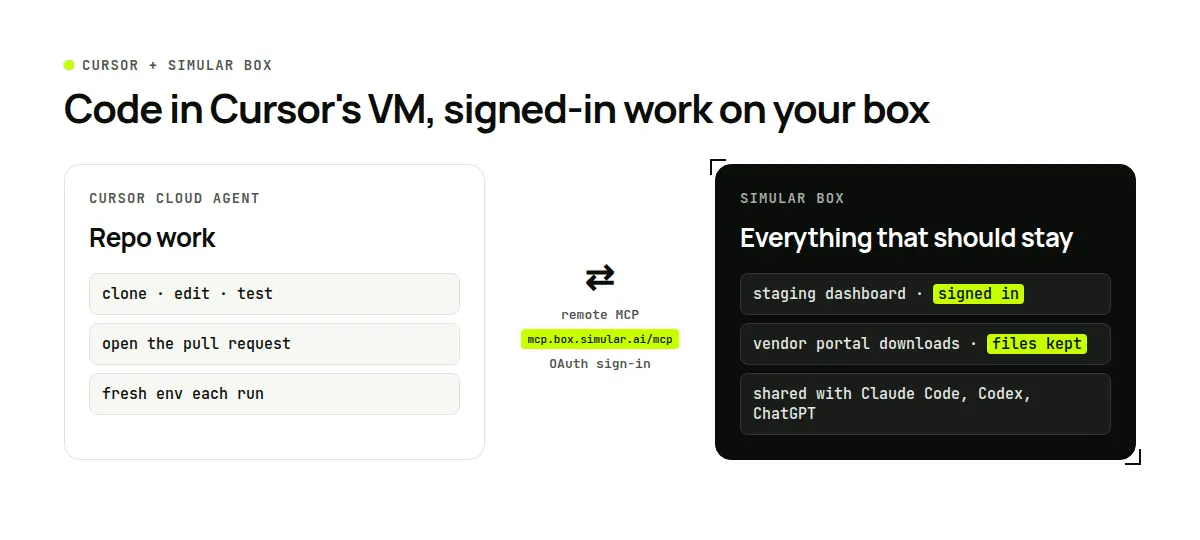
Simular Box (box by Simular) is a cloud computer for your AI agents: a Linux desktop with Chrome, files and a terminal that stays between tasks. Cursor reaches it as one remote MCP server.
Set it up
- Cursor on your computer: run
npx @simular-ai/box connect(or add--client cursor). It adds the box server to Cursor's MCP settings and leaves your other servers alone. Cursor signs you in with OAuth the first time; there is no key to paste. - Cursor Cloud Agents: add the box server URL,
https://mcp.box.simular.ai/mcp, from the MCP dropdown at cursor.com/agents. Cursor's docs say Cloud Agents support HTTP MCP servers and OAuth.
What it adds to Cursor
- A desktop that stays signed in. Sign in to a site once in the box's Chrome, through live view if needed. Passwords stay on the box and are never sent to Cursor.
- Keys without exposure. API keys added as secrets can be used by commands on the box while Cursor only sees a stand-in.
- Shared with your other agents. Claude Code, Codex and ChatGPT can use the same box, so another agent can continue what Cursor started, with the same files and logins. Agents take turns rather than working at the same moment.
- Efficient computer use. Simular Box works through the shell, files and browser first, runs several GUI steps in one call, and can replay a saved task without new model calls.
- Watch and step in. Live view shows the desktop; take control for a sign-in or a payment, then hand it back. Simular Box's own agent never enters payment details.
Example tasks
- "After your PR is up, open the staging dashboard in the box's Chrome, sign-in is already there, and confirm the new chart renders."
- "Download last month's invoices from the vendor portal on the box and add the totals to the finance sheet."
- "Reproduce the bug from ticket 482 in the customer's test account on the box and attach screenshots to the PR."
Set up Simular Box for Cursor. Start with $5 of free credit, then pay as you go from $0.10/hour or pick a plan from $19/month.
FAQ
What are Cursor background agents? AI coding agents that run in isolated cloud VMs instead of on your laptop. Cursor now calls them Cloud Agents.
Did Cursor rename background agents? Yes. Cursor's docs say Cloud Agents were formerly called Background Agents. They work the same way and have gained more launch points, hosts and tools.
How do I start a Cursor background agent? In the Cursor desktop app, pick Cloud under the agent input. You can also use cursor.com/agents, the iOS app, @cursor in Slack, Linear, GitHub or Bitbucket, or the API.
Do Cursor background agents keep running when my laptop is closed? Yes. They run in Cursor's cloud and don't need your machine to be online.
How much do Cursor background agents cost? On current plans they use your plan's usage at the selected model's rate. On legacy request-based plans they are priced at API rates plus the Max Mode upcharge. A larger context window can increase usage, and Cursor asks you to set a spend limit on first use.
How do I set up the environment for a Cursor background agent? Use agent-led setup, a saved snapshot, or a Dockerfile referenced in .cursor/environment.json. Builds prepare it in the background.
Which Git hosts do Cursor Cloud Agents support? GitHub (Cloud and Enterprise Server), GitLab (Cloud and Self-Hosted), Bitbucket Cloud and Azure DevOps. You can also start without a repository.
Can Cursor background agents use a browser or desktop? Yes, the agent's own VM has a desktop and browser for testing, and you can take control of it. For a desktop that stays signed in between tasks and is shared with your other agents, connect a Simular Box as an MCP server.
Cursor background agents vs Claude Code cloud sessions: which should I use? Use whichever matches your editor and plan. Both run coding tasks in the cloud and hand back a branch or pull request; Claude Code cloud sessions run on Anthropic's infrastructure and can be started from the web, the Claude apps or the terminal.
Sources
Autonome Computer zu bauen bedeutet nicht, Menschen zu ersetzen. Es bedeutet Zusammenarbeit.
Befreie deine Hände vom Computer. Laden Sie Simular noch heute kostenlos herunter.
