
Wir stellen SimuLang vor: Playwright für den gesamten Desktop
November 17, 2026
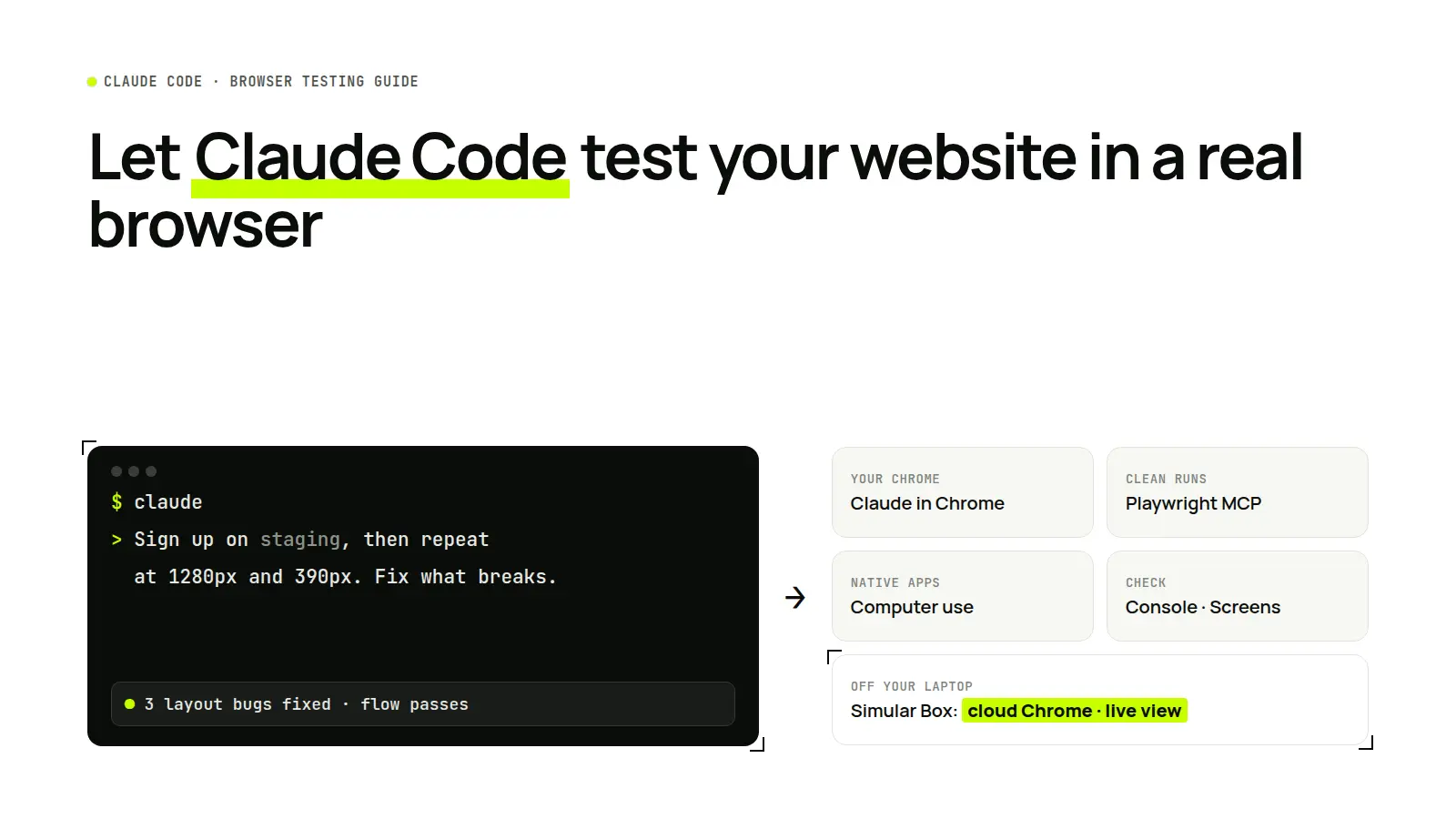
Short answer: Claude Code can test your website in a real browser in four ways. Use Claude in Chrome (claude --chrome) to test in your own Chrome with your logins. Use Playwright MCP for repeatable runs in a clean browser, headed or headless. Use computer use (a macOS preview) for native apps and simulators. Use a cloud computer such as Simular Box when the test should run off your laptop, keep its own signed-in Chrome, and be watchable from any device.
Definition. Browser testing with Claude Code means letting the agent open your site in a browser, click through flows, read the page and the console, take screenshots, and fix what it finds in the same session where it wrote the code. Unlike a fixed test script, the agent decides what to check from your instructions, so it can catch layout and flow problems a unit test would miss.
Why give Claude Code a browser at all
Claude Code is strong at writing and reading code, but it cannot tell from the code alone whether a button is hidden behind a cookie banner at 390 px, or whether a form submits twice. Without a browser it guesses. With one, it can run the loop a developer runs: change code, reload, look, fix.
The four options at a glance
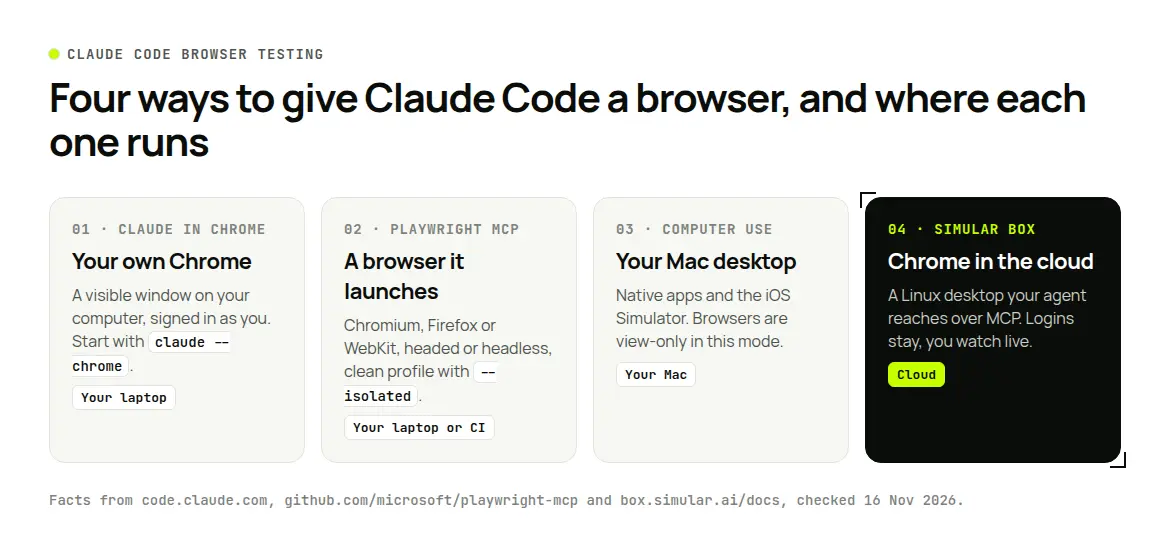
| Option | Where the browser runs | Logins | Best for | Limits |
|---|---|---|---|---|
Claude in Chrome (claude --chrome) | Your own Chrome, Edge or another Chromium browser, in a visible window | Your existing sessions | Quick checks on your local dev server and signed-in apps | Needs the Claude in Chrome extension (1.0.36+) and a direct Anthropic plan; not in WSL; uses your machine |
| Playwright MCP | A browser Playwright launches on your machine: Chrome, Edge, Firefox or WebKit, headed by default | A persistent profile, or a clean one with --isolated | Repeatable runs, device emulation, CI-like checks | One client per persistent profile; reads the accessibility tree, not pixels |
| Computer use (preview) | Your actual macOS desktop | Whatever is open | Native apps, the iOS Simulator, GUI-only tools | macOS only in the CLI; Pro, Max or Ultra plan; interactive sessions only; browsers are view-only |
| Simular Box | A cloud Linux desktop with Chrome | Signed in once on the box, kept between sessions | Long or unattended runs, shared test accounts, watching from your phone | Linux only; you sign in and click Allow once |
Facts checked on the vendors' docs, 16–17 November 2026.
Option 1: Claude in Chrome, your own browser
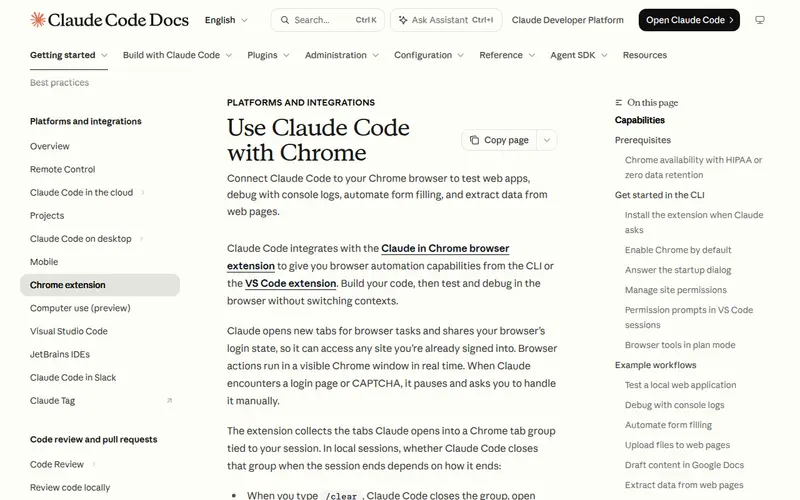
Claude in Chrome connects Claude Code to the Claude in Chrome extension. The agent opens new tabs in a visible Chrome window, shares your browser's login state, and collects its tabs into a tab group for the session.
Getting started. Start Claude Code with claude --chrome, or run /chrome and choose Enabled by default so you don't need the flag. /chrome also shows the connection status, manages site permissions and lets you pick a browser when more than one is connected. You need a direct Anthropic plan (Pro, Max, Ultra, Team or Enterprise) and sign-in with /login; it is not available through Amazon Bedrock, Google Cloud or Microsoft Foundry.
What it can do for testing.
- Live debugging: read console errors and DOM state, then fix the code that caused them.
- Flow testing: fill forms, check validation messages, verify user flows on
localhost. - Design checks: compare a built page against a design and screenshot the result to disk.
- Evidence: record the run as a GIF to share with your team. The docs warn that a GIF captures everything visible, including account details, so review it before sharing.
Watch out for. When Claude reaches a login page or a CAPTCHA, it pauses and asks you to handle it. Site permissions come from the extension's settings. A JavaScript alert or confirm dialog blocks the page until you dismiss it. It works in Chrome, Edge and other Chromium browsers such as Brave and Arc, but not in WSL, and enabling it by default adds the browser tools to every session's context.
Best for: quick checks at your desk on a local server or an app you are already signed in to.
Option 2: Playwright MCP, a clean browser for repeatable runs
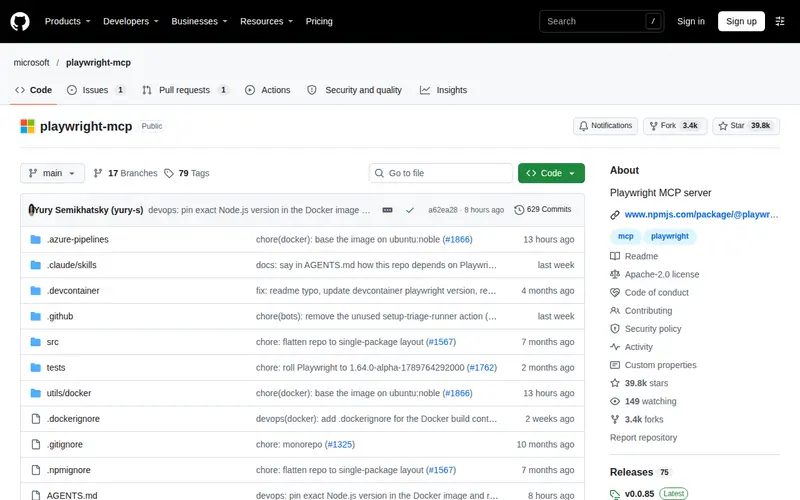
Playwright MCP is Microsoft's MCP server for browser automation. Claude Code adds it with one command from the README, and the agent then drives a browser through structured accessibility snapshots instead of screenshots, which the README describes as fast and lightweight.
Getting started. Add the server once, then ask Claude Code to use Playwright. Flags in the server config control the browser:
--browserpicks Chrome, Edge, Firefox or WebKit, so you can test beyond Chromium.--device "iPhone 15"emulates a phone;--viewport-size 1280x720sets a desktop size.--headlessruns without a window; headed is the default.--isolatedstarts every session from a clean, in-memory profile, and--storage-stateloads saved cookies for a signed-in test user.--caps vision,pdf,devtoolsadds coordinate clicks, PDF output or DevTools features when you need them.
What it can do for testing. Tools include browser_navigate, browser_click, browser_fill_form, browser_snapshot, browser_take_screenshot, browser_console_messages, browser_network_requests and browser_resize, so Claude Code can walk a flow, read errors and network calls, and repeat it at another size.
Watch out for. A persistent profile can serve only one browser at a time; parallel clients need --isolated or separate profiles. It does not use your everyday browser's logins unless you connect through the Playwright Extension (--extension). Microsoft also offers a Playwright CLI with skills for coding agents that want to save context.
Best for: the same test, the same way, every time, including in CI. For performance traces and network debugging in Chrome specifically, see our guide to Chrome DevTools MCP.
Option 3: computer use, for things that are not web pages
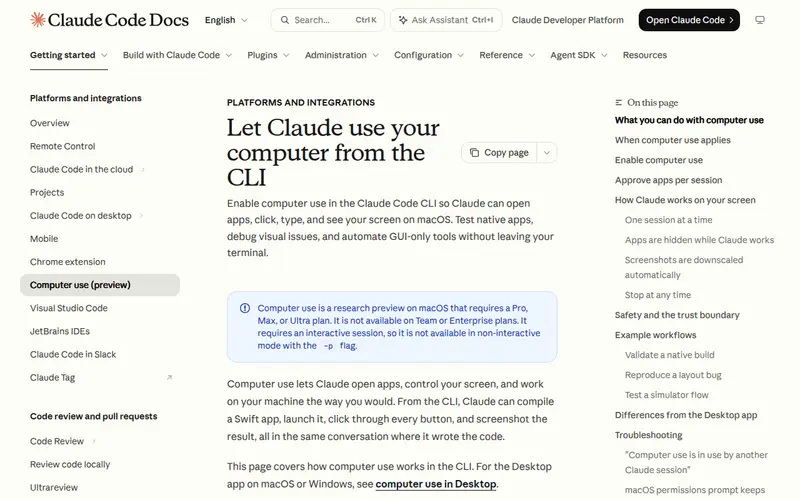
Computer use in the Claude Code CLI lets Claude open apps, click, type and see your screen. It is a research preview on macOS that needs a Pro, Max or Ultra plan and an interactive session (not -p).
Getting started. Run /mcp, find the built-in computer-use server and enable it for the project. The first time, macOS asks for Accessibility and Screen Recording permissions. Each app needs your approval per session, and apps with broad reach (terminals, Finder, System Settings) come with a warning.
How it behaves. Claude tries the more precise tools first: an MCP server, then Bash, then Claude in Chrome, and only then screen control. While it works, other apps are hidden, your terminal stays visible but is left out of screenshots, and pressing Esc anywhere stops it. Only one session can control the computer at a time. For browsers, control is view-only.
Best for: native builds, Electron apps and the iOS Simulator, such as "launch the app, open preferences and check the slider updates the label". It is not the right tool for ordinary web testing.
Option 4: a cloud computer with its own Chrome
The first three options all run on your computer. That is fine for a two-minute check, but it breaks down when a run is long, when you want to close your laptop, or when the test needs a signed-in account you don't want in your personal browser.
Simular Box gives Claude Code a cloud Linux desktop with Chrome, files and a terminal, connected as one remote MCP server. Claude Code opens your app in the box's Chrome, clicks through flows, reads the page and takes screenshots, while your own computer stays free.
What it looks like. In box's own visual QA demo, the app's code and dev server ran on the box. Claude Code was asked to check a checkout page on two phone sizes, mark what was broken, fix it and prove the fix:
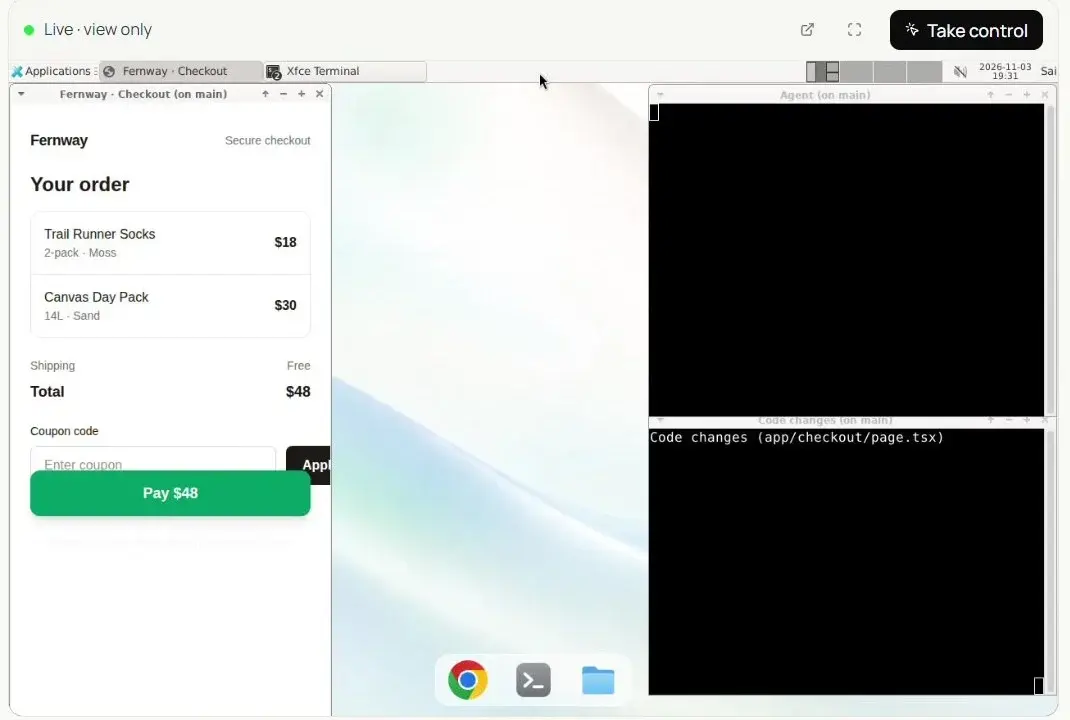
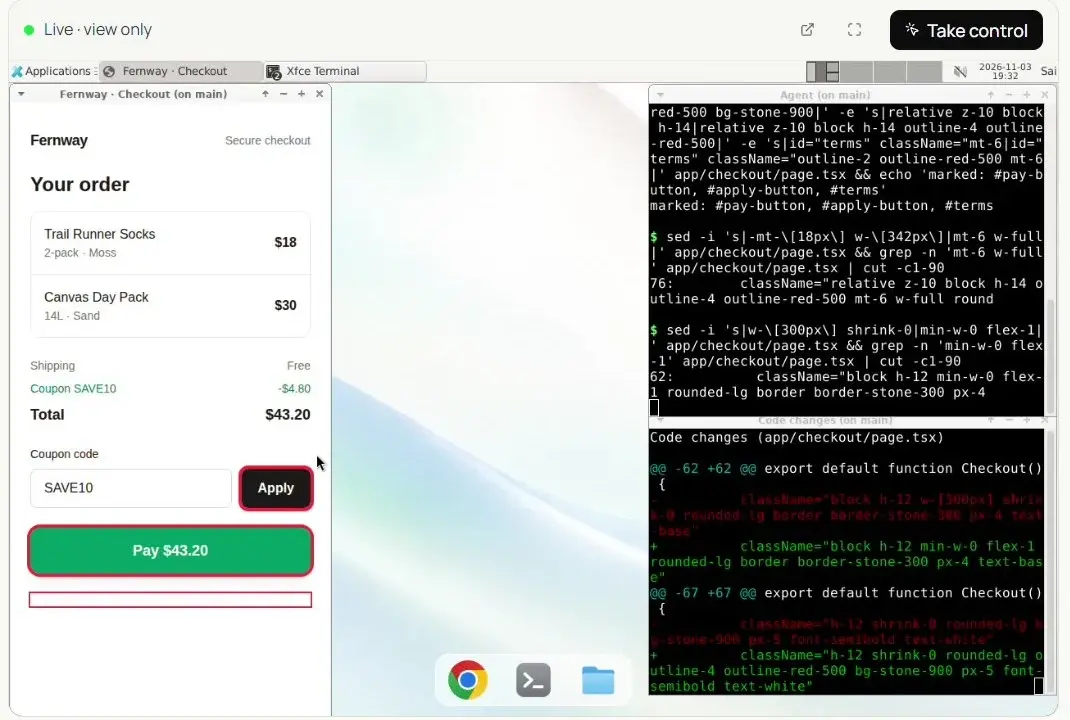
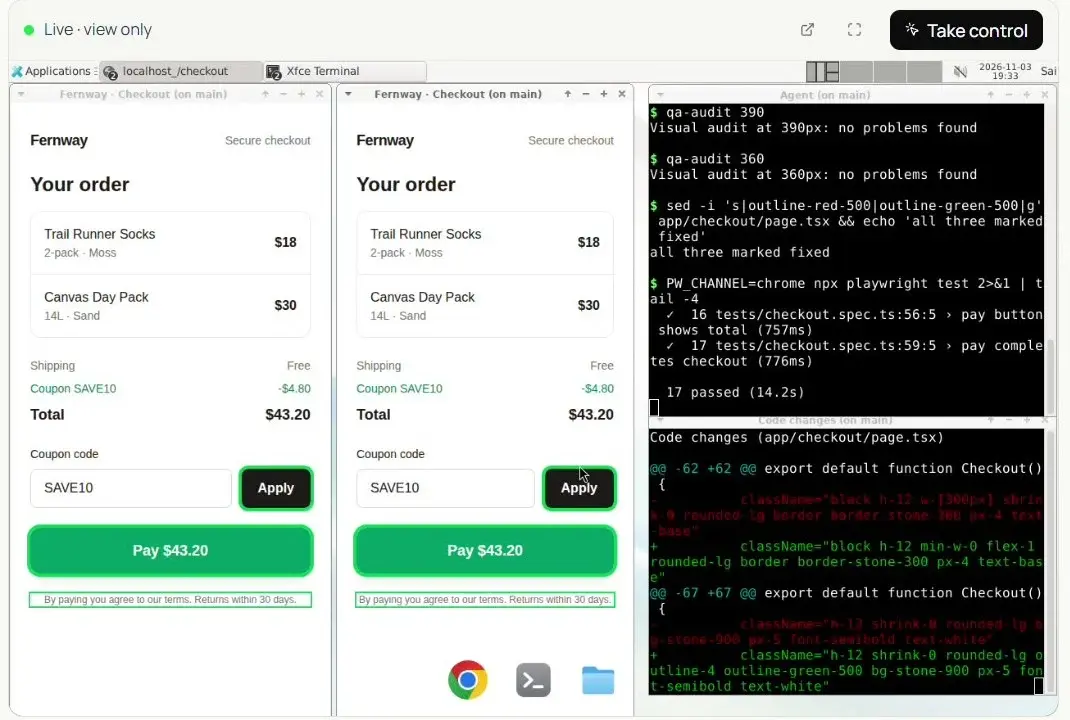
It found three layout bugs at 390 px (the Pay button covering the coupon field, a cut-off Apply button and nearly invisible terms text), traced each to a line in the code, fixed them, checked again at 390 px and 360 px, and confirmed the existing tests still passed.
Why use a box for this.
- Sign in once, keep it. Log in to a test account in the box's Chrome and the session stays for the next run. Passwords stay on the box and are never sent to the AI.
- Watch and take over. Follow the run in the live view, also in the Claude phone app, and click Take control for a 2FA code, then hand back.
- Keys without pasting them. API keys you add as secrets work for commands on the box while the AI only sees a stand-in.
- Headless and CI runs.
claude -pcan use the box with no one at the keyboard; the headless guide shows how to allow box's tools for one run.
Set-up steps for Claude Code are in the box docs. Limits: Linux only, so Safari and Windows browsers are out; and someone has to sign in to box and click Allow once.
How to write a good test prompt
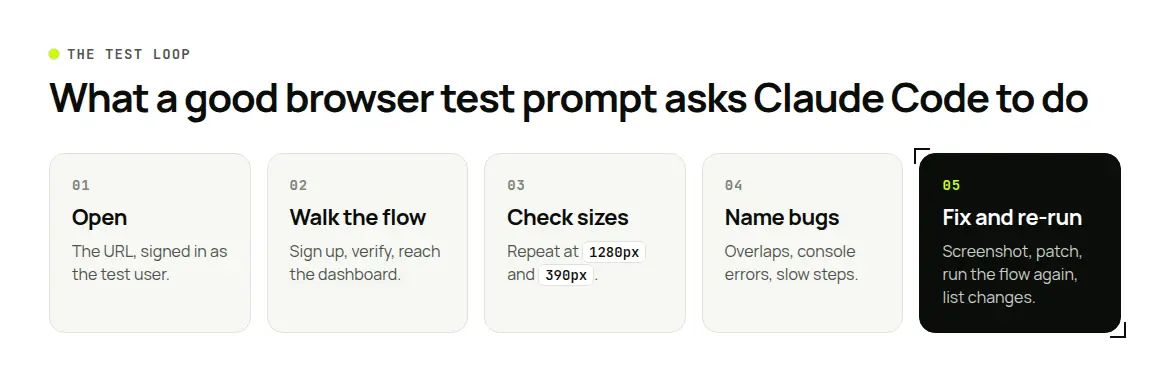
Whatever option you pick, the prompt decides the quality of the test. Good prompts name:
- The URL and the state. "Open the staging site, signed in as the test user."
- The flow. "Sign up, verify the email, reach the dashboard."
- The viewports. "Repeat at 1280 px and 390 px."
- What counts as a bug. "Overlapping elements, console errors, buttons outside the viewport, any step slower than 3 seconds."
- What to do next. "Screenshot each bug, fix the CSS, re-run the flow, and list what changed."
Which option should you use?
- At your desk, testing your own local server: Claude in Chrome.
- Same test every time, clean state, other browser engines or CI: Playwright MCP.
- Native app or simulator on a Mac: computer use.
- Long runs, shared test accounts, or you want your laptop back: Simular Box.
You can combine them: Playwright MCP for repeatable checks, and a box for long exploratory runs that a person may need to step into. If you also use Codex, both agents can test on the same box; see how Claude Code and Codex share one environment.
FAQ
Can Claude Code test my website in a browser?
Yes. Connect it to a browser through Claude in Chrome, Playwright MCP or a cloud computer such as Simular Box, then ask it to open the site, click through flows and report or fix what it finds.
What is the difference between Claude in Chrome and Playwright MCP for Claude Code?
Claude in Chrome uses your own Chrome window and logins. Playwright MCP launches its own browser (Chrome, Edge, Firefox or WebKit), can run headless, emulate devices and start from a clean profile each time.
Can Claude Code test a mobile layout?
Yes. Ask for specific widths, use Playwright MCP's --device option to emulate a phone, or let Claude Code resize Chrome on a Simular Box, as in box's visual QA demo at 390 px and 360 px.
Can Claude Code run browser tests without my laptop?
Not with the local options, which run on your machine. A cloud computer such as Simular Box runs the browser in the cloud, so you can watch the run from another device.
Does Claude Code computer use work for web testing?
It can see a browser, but in the CLI it is a macOS preview where browsers are view-only, and Claude prefers Claude in Chrome for browser work. Use it for native apps and simulators.
Can Claude Code test pages behind a login?
Yes. With Claude in Chrome it uses your existing sessions; with Playwright MCP you can load a saved storage state; with Simular Box you sign in once on the box and the session stays. Never paste passwords into the chat.
Is it safe to let Claude Code drive a browser?
Treat page content as untrusted: a web page can contain text that tries to steer the agent. Use a separate browser profile or a separate computer for testing, keep payments out of the flow, and review what the agent changes.
Autonome Computer zu bauen bedeutet nicht, Menschen zu ersetzen. Es bedeutet Zusammenarbeit.
Befreie deine Hände vom Computer. Laden Sie Simular noch heute kostenlos herunter.
